
WooCommerce Receipt Printer and Barcode Scanner Setup
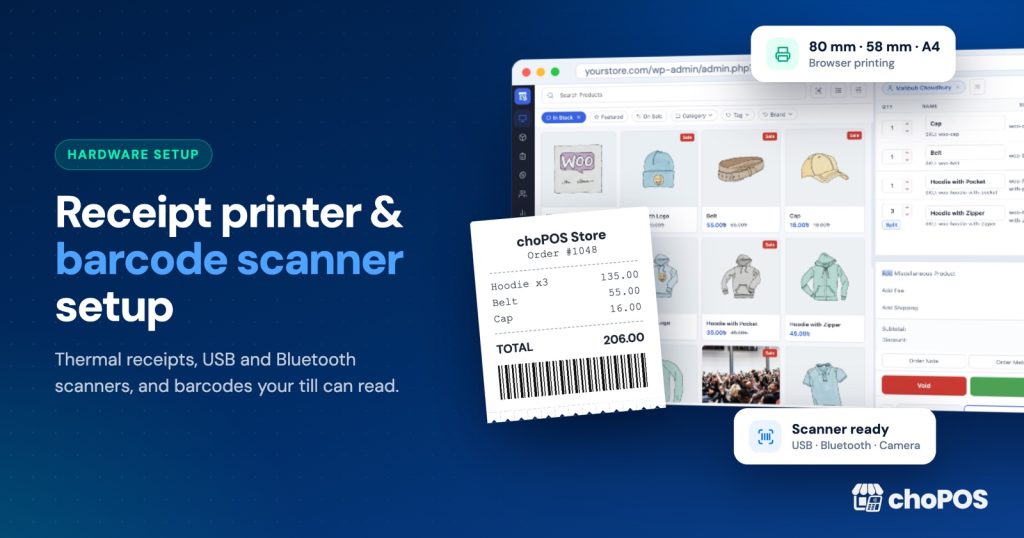
To set up a WooCommerce receipt printer, install it with its operating system driver, then print from the browser with the right paper size, zero margins, 100% scale and headers off. Plug in a USB or Bluetooth scanner in keyboard mode, set it to send Enter, and match codes to product SKUs or barcodes.
This guide uses choPOS, a free POS plugin for WooCommerce, but most of it applies to any browser-based POS.
One honest note first. choPOS prints through the browser and the operating system. It has no direct ESC/POS driver and cannot send a cash-drawer kick command itself. That shapes some choices below, and there are good workarounds.
How does printing work in a browser-based WooCommerce POS?
A browser POS builds the receipt as a small web page sized for your paper and asks the browser to print it. The browser hands the job to the operating system, and the printer driver does the rest.
So any printer your device can already print to will work, including 80 mm and 58 mm thermal printers installed with the maker’s driver. The catch is the print dialog in the middle: its settings decide whether you get a clean receipt or tiny text with a URL and date around it.
choPOS has receipt templates for 80 mm and 58 mm thermal paper and for A4: detailed receipt, gift receipt, packing slip and kitchen ticket. You can print, download a PDF or email the receipt, and show or print it automatically after checkout.
Get the print dialog right once
- Install the manufacturer’s driver and print the operating system’s test page. If that fails, no browser setting will help.
- Make a test sale and open the receipt. Pick the template that matches your paper.
- In Chrome’s print dialog, choose the receipt printer as the destination.
- Open More settings. Set the paper size to the roll width your driver offers (often “80 x 297 mm” or “Roll paper 80 mm”).
- Set Margins to None or Minimum and Scale to 100%. Fit to page shrinks the text.
- Untick Headers and footers to remove the page title, URL, date and page number.
- Print, then check that the second receipt keeps the same settings.
Still small or cut off? Fix the paper width in the driver’s preferences.
Advanced: one-touch printing with Chrome kiosk printing
Chrome has a command-line switch, –kiosk-printing, which the Chromium command-line switches list describes as “Enable automatically pressing the print button in print preview.” Jobs go straight to the default printer.
On a Windows till, make a dedicated Chrome shortcut, open Properties and add –kiosk-printing after a space at the end of the Target field. Set the receipt printer as the Windows default, close every Chrome window and relaunch from that shortcut. Then turn on Print Receipt Automatically in choPOS so receipts print the moment an order is paid.
The Chromium project warns that switches can change without notice, so retest after updates. Keep a normal shortcut for office printing. Support outside Windows is patchy, so test on your own device.
Should you choose an 80 mm or 58 mm receipt printer?
Paper width is fixed by the printer, so decide before you buy.
| Factor | 80 mm | 58 mm |
|---|---|---|
| Typical use | Fixed counters in retail, cafés, grocery | Small counters, portable printers |
| Readability | Long product names fit on one line | Names wrap, receipts get longer |
| Footprint | Larger | Compact, often battery powered |
| Best for | Itemised receipts, tax lines, kitchen tickets | Short receipts, pop-ups, low volume |
One fixed counter with long product names: choose 80 mm. Markets or a bag-sized kit: 58 mm is fine. Check roll diameter and core size too.
USB, network or Bluetooth: which printer works with which device?
A browser can only print to printers the operating system can see. The real question is whether your device has a driver for this printer over this connection.
| Device | USB | Network | Bluetooth |
|---|---|---|---|
| Windows PC | Best option with the vendor driver | Works with the vendor driver | Possible, less reliable |
| Mac | Works if a macOS driver exists | macOS driver or AirPrint | Rarely practical |
| Android tablet | Needs a vendor print service app | Needs a supporting print service | Needs a vendor print service app |
| iPad | Not usable from the browser | AirPrint printer on the same Wi-Fi | Not usable for browser printing |
Windows and macOS
Desktops are easiest: install the driver, set the paper size, and the printer appears in Chrome. USB suits one counter; network suits shared or kitchen printers.
Android tablets
Android prints through print services. Google explains how to turn print services on and add a printer under Settings, Connected devices, Connection preferences, Printing. Without a print service app from the printer’s maker, the printer won’t show in Chrome’s dialog, so check before you buy.
iPad
An iPad prints from the browser through AirPrint only. Apple describes AirPrint as printing without drivers, and the printer must support it. A Bluetooth thermal printer made for phone apps will usually not appear. Buy a network receipt printer its maker lists as AirPrint compatible, or print on an AirPrint office printer on A4.
Can choPOS open a cash drawer?
Not directly. Without an ESC/POS driver, choPOS can’t send the “open drawer” pulse. You have two practical options.
- A manual drawer that opens with a key or push-release lever. It works with every device.
- A printer-driven drawer. Most receipt printers have an RJ11 or RJ12 drawer port, and some Windows drivers open the drawer on every print job. A Wasp guide shows how to set the printer driver to open the drawer when it prints.
The trade-off: the drawer opens for every print, including reprints and gift receipts. Confirm your printer’s driver offers this for your operating system before buying.
Card payments work in a similar way. choPOS doesn’t connect to card readers or charge cards through a gateway. Take the payment on your standalone terminal and record it with the built-in Card method, which appears only in the POS. Card refunds happen on the terminal or in your provider’s dashboard.
How do barcode scanners work with a WooCommerce POS?
Most retail scanners work in keyboard-wedge (HID) mode. The scanner acts as a keyboard, typing the barcode very quickly and pressing Enter. No driver is needed on Windows, macOS, Android or iPad. choPOS listens for these fast bursts on the POS screen and adds the matching product to the cart.
1D or 2D, wired or Bluetooth?
A 1D scanner reads product barcodes such as EAN-13, UPC-A and Code 128. A 2D imager also reads QR codes, and many read codes from phone screens. For packaged goods and your own labels, 1D is enough; 2D leaves room to grow.
A wired USB scanner is cheap and never loses pairing, which suits a PC or laptop till. Bluetooth suits iPads, Android tablets and scanning bulky items away from the counter. Pair it in keyboard (HID) mode, not a serial or app-only mode.
Set the scanner’s suffix and prefix
Scanners are configured by scanning setup barcodes in their manual. The key setting is the suffix sent after each code. Enter is the usual default; Wasp’s guide notes its scanner ships with no prefix and Enter as the suffix. Keep Enter or Tab and leave the prefix empty unless you need one.
Tune choPOS’s scanner settings
Open Settings, then Barcode Scanning. Settings are stored per device, so repeat this on every till.
- Check that Enable Barcode Scanner is on.
- Max Time Between Keystrokes (milliseconds) tells a scanner from a person typing. Raise it slightly if a slow Bluetooth scanner misses scans.
- Minimum Barcode Length ignores short accidental bursts. Keep it at or below your shortest code.
- Prefix and Suffix strip extra characters your scanner adds. Use the suffix field only if it doesn’t send Enter.
- Scan any barcode in the Test area, with no field selected, to confirm detection.
Scans into ordinary form fields, such as a customer name, are ignored. The product search box is the exception.
Camera scanning
choPOS can scan with a device camera in browsers that support built-in barcode detection, which caniuse lists as supported in Chrome for Android, partial in desktop Chrome, and off by default in Safari and Firefox. The POS must run over HTTPS. Treat it as a backup, not a replacement for a scanner.
How do you put barcodes on your WooCommerce products?
choPOS matches a scanned code in this order: first product and variation SKUs, then choPOS’s own Barcode field, edited in the product editor inside the POS. Each variation has its own field, so a scan adds the exact size or colour.
SKU, choPOS Barcode field or WooCommerce GTIN?
If your SKUs already are the packaging numbers, you’re done. If your SKUs are internal codes like “MUG-BLU-L”, keep them and put the barcode number in the choPOS Barcode field.
A practical tip: WooCommerce 9.2 added its own GTIN, UPC, EAN or ISBN field, and choPOS does not read it. If your EAN codes live there, either use them as the SKU or copy them into the choPOS Barcode field, or scans won’t find the product.
GTIN, EAN and UPC basics
Retail packaging numbers are GTINs issued through GS1. EAN-13 is used in most of the world and UPC-A (12 digits) mainly in North America; both scan at point of sale anywhere. If you make products to sell through other retailers or marketplaces, get a GS1 company prefix from your local GS1 office. If you resell branded goods, scan the code already on the box.
In-store codes and labels
Handmade, loose and second-hand items often have no barcode. GS1 reserves prefixes 20 to 29 for Restricted Circulation Numbers for internal use, and Code 128 labels holding your SKU also work.
choPOS Pro adds barcode label printing: Code 128 labels for products and variations on A4 sheets (21, 24, 40 or 65 per sheet), Letter (30 or 80), label rolls (50×25, 40×30, 38×25, 57×32 mm) or a custom size. “Match stock” prints one label per item in stock, and products with no barcode or SKU get an in-store barcode in one click.
Troubleshooting receipt printers and barcode scanners
| Symptom | Likely cause | Fix |
|---|---|---|
| URL or date on the receipt | Headers and footers on | More settings, untick Headers and footers |
| Tiny text | A4 paper size or Fit to page | Roll paper size, scale 100% |
| Right side cut off | Template and paper width mismatch | Match template, dialog and driver width |
| Long blank paper after receipts | Fixed page length in driver | Choose a roll paper size |
| Printer missing on iPad | No AirPrint support | AirPrint network printer, or email receipts |
| Printer missing on Android | No print service | Install and enable the maker’s print service |
| Kiosk printing still shows dialog | Chrome already open without the switch | Close all Chrome windows, relaunch |
| Scan does nothing | A text field has focus | Click an empty area, check the Test area |
| Digits appear, no product added | Code not in SKU or choPOS Barcode field | Add it there, not only in the GTIN field |
| Scans missed or split | Keystroke gap too short | Raise Max Time Between Keystrokes |
| Extra characters on codes | Scanner prefix or suffix | Enter them in choPOS, or reprogram |
| Wrong characters | Keyboard layout mismatch | Set the scanner’s keyboard country |
| Camera error | No HTTPS or unsupported browser | Use HTTPS and Chrome on Android |
Starter hardware checklist by shop type
- PC or laptop counter: 80 mm USB thermal printer with a Windows driver, wired USB scanner, drawer on the printer’s port or a manual drawer, standalone card terminal.
- iPad counter: AirPrint-compatible network receipt printer, Bluetooth HID scanner, manual drawer, stand, card terminal.
- Android tablet counter: printer with the maker’s Android print service, Bluetooth or USB scanner, manual drawer, card terminal.
- Pop-up stall: 58 mm portable printer your device can print to, compact Bluetooth scanner, cash box, mobile data. Our pop-up shop POS guide covers connectivity, since choPOS needs internet.
- Handmade or unbranded stock: add a label printer or A4 label sheets.
New to this? Start with turning your WooCommerce store into an in-person POS, then connect the hardware.
Key takeaways
- Set paper size, zero margins, 100% scale and no headers or footers in the print dialog.
- Chrome’s kiosk printing switch removes the dialog click on Windows tills.
- 80 mm for fixed counters, 58 mm for portable kits.
- iPads need AirPrint printers; Android needs the maker’s print service.
- For the cash drawer, use a manual drawer or a driver that opens it.
- Put barcodes in the SKU or choPOS Barcode field, not only the WooCommerce GTIN field.
Frequently asked questions
Can I connect a thermal receipt printer to WooCommerce?
Yes, through a POS plugin. WooCommerce itself doesn’t print counter receipts. With a browser-based POS such as choPOS, you install the thermal printer with its operating system driver and print through the browser’s print dialog using 80 mm or 58 mm templates. Any printer your computer or tablet can already print to will work.
Do barcode scanners need software or drivers?
Most don’t. Scanners in keyboard-wedge (HID) mode act like a keyboard, typing the code and pressing Enter, so Windows, macOS, Android and iPad recognise them without drivers. You only need the manual’s setup barcodes to change the suffix, prefix or keyboard language. Avoid scanners that only work with one vendor’s app.
How do I stop Chrome printing the URL and date on receipts?
In Chrome’s print dialog, open More settings and untick Headers and footers. That removes the page title, URL, date and page number. While you’re there, set margins to None or Minimum and scale to 100%. Chrome usually remembers these settings, so check once more on the next receipt.
Can an iPad print to a thermal receipt printer?
Only if the printer supports AirPrint and shares the iPad’s Wi-Fi network. iPad browsers can’t use USB or Bluetooth printer drivers, so many thermal printers sold for phone apps won’t appear in the print dialog. Choose a network receipt printer listed as AirPrint compatible, print on an AirPrint office printer, or email receipts.
Can I use my phone or tablet camera as a barcode scanner?
Yes, in browsers with built-in barcode detection, mainly Chrome on Android, and only when the site runs over HTTPS. Safari and Firefox don’t support it by default. A camera is slower than a hardware scanner, so use it as a backup for quiet periods or stock checks rather than at a busy till.
Will choPOS open my cash drawer automatically?
Not by itself. choPOS prints through the browser and has no ESC/POS driver, so it can’t send a drawer-open command. If the drawer plugs into the receipt printer, some printer drivers can open it on every print job. Otherwise, a drawer with a key or push-release lever works with any device.
Ready to test your hardware? Download choPOS Free from WordPress.org, make a test sale and print your first receipt today. For barcode labels or several branches, see the choPOS Pro plans.