WooCommerce POS Setup: How to Start Selling In Person
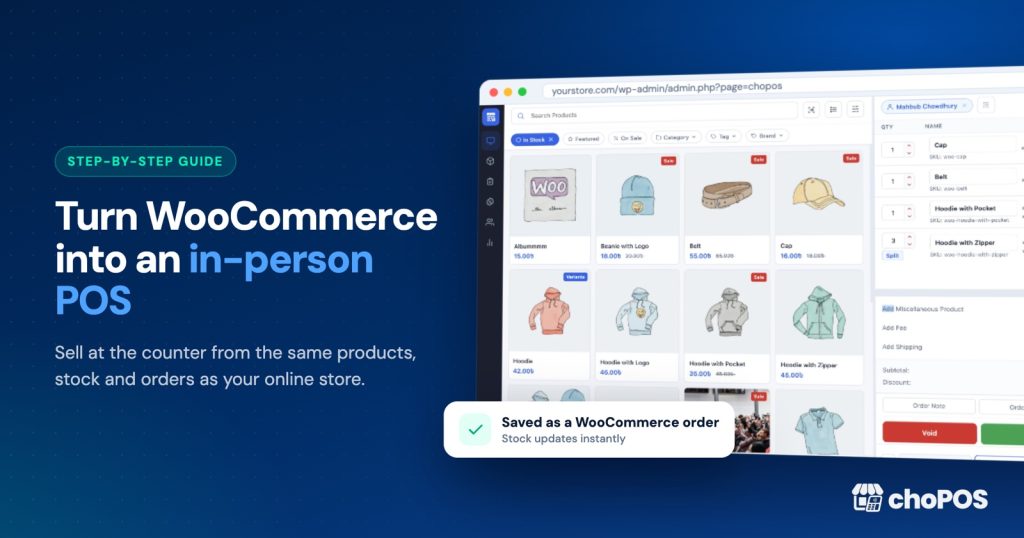
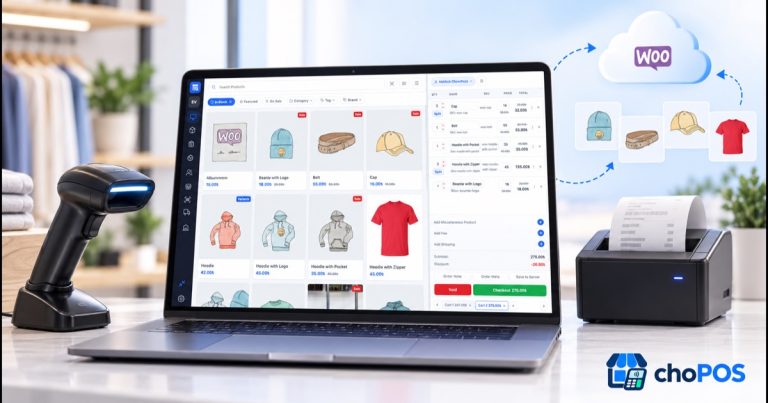
To sell in person with WooCommerce, you add a point of sale (POS) plugin that turns a browser on a laptop, tablet or iPad into a till. Prepare your catalogue first (SKUs, barcodes, stock tracking, tax), install a POS such as choPOS, set up receipts and scanning, give each cashier their own login, then run a test sale and refund.
I have set up counters in shops, showrooms and market stalls. The software takes ten minutes; the catalogue, tax settings and staff habits take the rest of the day. This guide follows the order that avoids redoing work.
Still comparing options? Our guide to choosing a WooCommerce POS covers that. This post is for getting a working counter today.
What do you need before you start selling in person?
Most of it you already own. A browser-based POS runs inside your existing WordPress site, so there is nothing separate to host or sync.
| Item | What you need | Notes |
|---|---|---|
| Hosting | Your current WordPress hosting | A slow host means a slow counter. |
| WooCommerce | Installed, with products set up | Every counter sale becomes a normal WooCommerce order. |
| Device | Laptop, desktop, Android tablet or iPad | Any modern browser. A 10-inch or larger screen suits a product grid. |
| Internet | Reliable Wi-Fi or mobile data | choPOS does not work offline. Plan a backup connection, such as a phone hotspot. |
| Barcode scanner (optional) | USB or Bluetooth scanner that acts as a keyboard | Or use the device camera in browsers that support it. |
| Receipt printer (optional) | 80 mm or 58 mm thermal, or any A4 printer | Must be installed on the device with its normal OS driver. |
| Card payments (optional) | A card terminal or app from your payment provider | See the payments section below for how this fits with WooCommerce. |
For a deeper look at choosing and connecting a printer and scanner, see our receipt printer and barcode scanner setup guide.
Does WooCommerce have its own in-person payment options?
Yes. WooCommerce now offers a Point of Sale mode in the Woo mobile app. It turns a supported tablet into a register and takes cash, or cards through WooPayments or Stripe with a WooCommerce card reader or Tap to Pay.
There are limits worth checking. At the time of writing (October 2026), WooCommerce’s documentation lists ten supported countries: the United States, Canada, the United Kingdom, Australia, Finland, Ireland, Luxembourg, the Netherlands, Singapore and New Zealand. Its In-Person Payments guide says US merchants use the M2 reader and the other countries use the WisePad 3, and that Tap to Pay is limited to the US, UK and (on Android) Canada.
WooCommerce also withdrew support in several EU countries, including Germany, France, Spain and Italy, in June 2026 while it works on local compliance. The POS mode documentation also says only simple and variable products are supported for now, and it does not describe printed receipts or separate staff logins.
If you are in a supported country and want WooCommerce’s own card reader, the Woo app is a fair choice. If you are elsewhere (India, Bangladesh, most of the EU), need printed receipts, or want each cashier on their own account, a POS plugin is the more flexible route.
How card payments work with choPOS
Be clear on this before your first busy day. choPOS has two built-in counter payment methods, Cash and Card, which appear only in the POS and never at your online checkout. It does not connect to or control a card reader. You take the card payment on any standalone terminal or reader, then record it in choPOS as Card so your reports show the right totals. Any enabled WooCommerce gateway is listed at the till too.
How do I prepare my WooCommerce catalogue for the counter?
A POS only shows what is already in WooCommerce, so tidy it first.
1. Give every product a unique SKU
A SKU is your own short code for a product. WooCommerce’s product editor documentation notes that each SKU must be unique across the store. Use a readable pattern such as TEE-BLU-L for a large blue T-shirt, and give each variation its own SKU too.
2. Decide on your barcodes
If you sell your own products through other retailers, you will need official barcodes. These are GTINs issued by your national GS1 organisation; GS1 UK’s retail guide explains that the first step is joining your local GS1 member organisation for a company prefix. If you only sell in your own shop, you can simply barcode your SKUs, because choPOS matches scans against the SKU or a dedicated barcode field on products and variations.
Bought-in goods often carry a manufacturer barcode you can scan into the product’s choPOS Barcode field. WooCommerce’s variable product documentation adds a GTIN field per variation, but choPOS scans only the SKU and its own Barcode field.
3. Turn on stock tracking
Enable stock management under WooCommerce, Settings, Products, Inventory, then tick stock management on each product and enter real quantities. Do a physical count first: the online shop and the counter draw from the same numbers, which only helps if they are right.
4. Check your tax settings
Follow WooCommerce’s tax setup guide and pay attention to two settings. First, “Prices entered with tax”: most shops that sell over a counter price items including tax, so the ticket price matches what the customer pays. Second, “Calculate tax based on”: for walk-in sales, the shop base address is usually what you want. Confirm the rules with your accountant.
5. Enable payment methods that suit a counter
choPOS includes Cash (with amount tendered and change due) and Card (for payments taken on an external terminal), so most counters need nothing extra. Any gateway you enable in WooCommerce also appears at the till. Tell staff to record terminal payments as Card.
How do I install choPOS step by step?
choPOS Free installs like any other plugin. For background, read what choPOS is and who it suits.
- Make sure WooCommerce is installed and active.
- In the WordPress admin, go to Plugins, Add New, and search for “choPOS”.
- Click Install Now, then Activate.
- Open choPOS from the admin menu. The terminal loads in the browser, with your WooCommerce products already in the grid.
- Open Settings (the gear at the bottom of the terminal sidebar) and check the store address, currency and tax details copied from WooCommerce.
There is no account to create, no external service and no per-transaction fee.
How do I configure the terminal?
choPOS settings are stored per device, in the browser. So the counter laptop can print thermal while the back-office PC prints A4, but you must repeat setup on each device.
Store details and display
Confirm the store name and address that appear on receipts, the currency and number format, and pick an accent colour. In the product grid, set the tile size and choose which fields each tile shows: name, price, SKU, stock, categories, barcode, tax or cost of goods.
Tax display
choPOS uses your WooCommerce tax rates and classes, including compound rates and postcode or city rules. In the terminal, choose whether to tax by shop base address or customer address, whether to show prices including or excluding tax, and whether receipts show itemised or single tax totals.
Printing
Choose a receipt template: 80 mm or 58 mm thermal, or A4. Templates include a detailed receipt, gift receipt, packing slip and kitchen ticket. Printing goes through the browser’s print dialog, so any printer your device can print to will work. There is no direct ESC/POS driver and choPOS cannot open a cash drawer, so if you use a drawer, open it by key or use one your printer driver triggers. You can also download a PDF, email the receipt, or have it shown or printed automatically after each sale.
Barcode scanning
Plug in a USB scanner, or pair a Bluetooth one, and scan on the terminal screen. Keyboard-style scanners work straight away. If scans are misread, adjust the scan timing, minimum length, prefix or suffix in settings. On a tablet without a scanner, try camera scanning, which works in browsers that support it.
How do I set up staff accounts and roles?
Each cashier should sign in with their own WordPress account. Shared logins hide who rang up what, and a shared admin password at a public counter is a security risk.
choPOS adds four capabilities: chopos_cashier (use the terminal), chopos_manager (settings and management screens), chopos_view_reports and chopos_manage_stores. Administrators and Shop Managers receive them automatically. WooCommerce’s roles and capabilities documentation explains that Shop Managers can also edit products, orders, coupons and store settings, so that role suits a supervisor rather than a weekend helper.
For regular cashiers, create a user with a low-level role and add the chopos_cashier capability with a role editor plugin. Cashiers then see only the POS orders and held carts they created, while managers see everything. You can run any number of cashiers and devices at once.
How do I run a first test sale, receipt and refund?
Run this on the actual device, printer and scanner, ideally the day before you open.
- Sign in as a cashier account, not as the admin.
- Switch on full-screen mode to hide the WordPress admin.
- Scan a barcoded product, search for a second by name, and pick a variation of a third.
- Apply a quick percentage discount to one line and add a miscellaneous item, such as gift wrapping.
- Open a second cart for an imaginary customer, then go back to the first. The parked cart is kept as a “POS – Open” order.
- Take a cash payment, enter the amount tendered and check the change due.
- Print the receipt and check width, logo area, tax lines and store address. Email a copy to yourself.
- Open the order in the WooCommerce admin and confirm stock went down and the order is attributed to the right cashier.
- Back in the terminal, open the order and refund it. The refund is recorded on the WooCommerce order. choPOS does not send money back through a gateway, so return cash from the till or refund the card on your terminal.
- Run a report for today, filtered by order source “pos”, and check the sale, refund and payment method totals.
Typical fixes at this stage are a receipt template that is too wide, a scanner suffix setting, or prices showing excluding tax.
What does a daily routine look like?
Here is the routine I give new shop staff.
- Opening: check the internet connection, sign in with your own account, print a test receipt, and count the cash float.
- During the day: park carts rather than abandoning them, and use order notes for anything unusual.
- Closing: finish or cancel open carts, count the cash, and run the day’s report filtered by payment method and order source to compare Cash with the drawer and Card with your terminal’s totals.
choPOS does not produce shift or Z reports. Its date-range reports, filtered by cashier, payment method and order source, cover similar ground and can be printed. Counter sales are saved with the source “pos” and web orders with “checkout”, so you can separate shop takings from online sales.
Selling at events rather than a fixed counter? Our pop-up shop POS guide covers power, connectivity and packing lists.
What are the most common setup mistakes?
- Not planning for connection drops. choPOS needs internet. Keep a phone hotspot ready and a paper sales log for genuine emergencies.
- Skipping the stock count. If WooCommerce says you have 12 and the shelf has 4, the online shop will oversell.
- Duplicate or missing SKUs. Scans will fail or find the wrong item.
- Everyone using the admin account. You lose accountability and expose your site.
- Mismatched tax display. Shelf labels including tax and a till showing prices excluding tax will confuse customers.
- Expecting the POS to charge cards. Take card money on your terminal and record it in choPOS as Card.
Key takeaways
- A WooCommerce POS plugin turns any modern browser into a till, and every sale becomes a normal WooCommerce order.
- Prepare the catalogue first: unique SKUs, barcodes, real stock counts and correct tax settings.
- WooCommerce’s own mobile POS mode is an option in ten countries; a plugin works wherever WooCommerce does.
- choPOS needs an internet connection and records card payments taken on any standalone terminal with its built-in Card method.
- Give every cashier their own account and test a full sale and refund before opening.
Frequently asked questions
Can I use WooCommerce as a POS system?
Yes, with a POS plugin or WooCommerce’s mobile app. WooCommerce core has no counter screen of its own, but plugins such as choPOS add a till inside the WordPress admin. Sales are saved as normal WooCommerce orders, so stock, customers and reports stay in one place and your online shop and counter share the same inventory.
Does WooCommerce have its own POS?
WooCommerce offers a Point of Sale mode in the Woo mobile app for supported tablets. At the time of writing (October 2026) its documentation lists ten supported countries, card payments need WooPayments or Stripe, and only simple and variable products are supported. If you are outside those countries or need printed receipts and individual staff logins, a POS plugin is the usual alternative.
Can a WooCommerce POS work offline?
It depends on the plugin. choPOS does not work offline, because it reads products and saves orders directly on your WordPress site. WooCommerce’s own POS mode also fetches current data at checkout. If your venue has weak signal, bring a mobile hotspot as a backup connection and test it at the venue before the day.
How do I take card payments in person with WooCommerce?
In supported countries, WooCommerce In-Person Payments works through the Woo mobile app with WooPayments or Stripe and a WooCommerce card reader. With a POS plugin like choPOS, you take the card on your payment provider’s terminal or app, then record the sale with choPOS’s built-in Card method so stock and reports stay accurate.
What hardware do I need for a WooCommerce POS?
Only a device with a modern browser and an internet connection: a laptop, desktop, Android tablet or iPad. Optional extras are a USB or Bluetooth barcode scanner that acts as a keyboard, an 80 mm or 58 mm thermal receipt printer installed with its normal driver, and a card terminal from your payment provider.
How much does it cost to set up a WooCommerce POS?
choPOS Free costs nothing and takes no per-transaction fee, so your costs are hardware and your payment provider’s card fees. choPOS Pro adds multiple stores, purchase orders and barcode label printing, with plans from $29 a year or $49 lifetime. WooCommerce’s In-Person Payments fees vary by country.
Ready to open your counter? Download choPOS Free from WordPress.org and run your first test sale today. When you need branches, purchasing or label printing, compare choPOS Free vs Pro to see what the upgrade adds.