
Pop-Up Shop POS: Run Market Stalls with WooCommerce
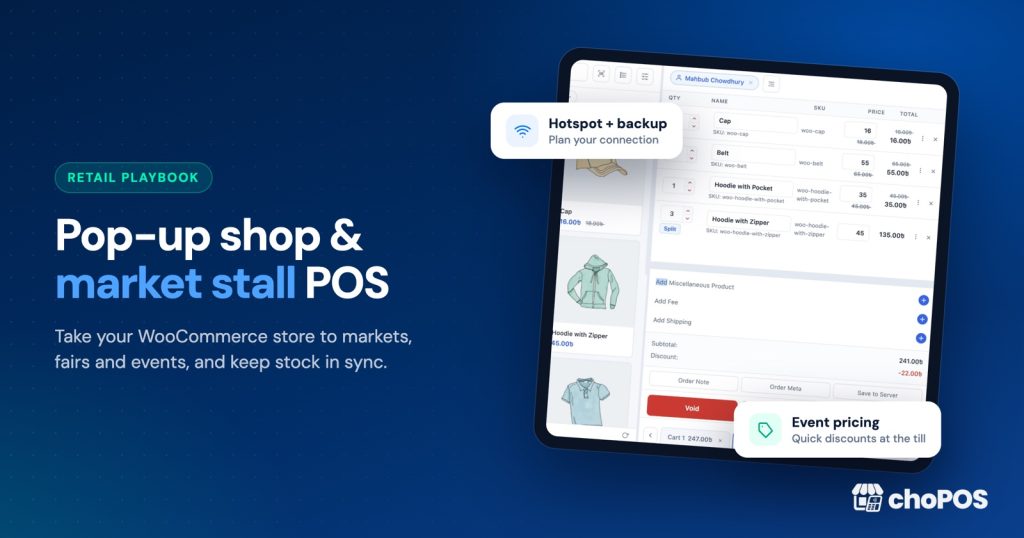
To run a pop-up shop or market stall from WooCommerce, install a browser-based POS plugin such as choPOS on your existing store and open it on a tablet or laptop with a reliable mobile data connection. Every stall sale becomes a normal WooCommerce order, so stock, customers and reports stay in one place. Take cards on any standalone reader and record them in choPOS as Card.
Markets, craft fairs and trade shows reward sellers who are ready before the first customer arrives. This guide covers the kit, the connection plan, a quick event catalogue, checkout habits and closing out the day. choPOS has no offline mode, so a large part of it is about planning your connection.
Why run your pop-up from WooCommerce instead of a separate till?
Sellers who also trade online often run two systems that don’t talk to each other. You sell the last blue mug at the fair while someone buys it on your website, and now you owe a customer an apology.
A WooCommerce POS avoids that. choPOS runs inside your WordPress admin in the browser and saves every counter sale as a regular WooCommerce order. Stock comes off the same product records your website uses, customers land in the same customer list, and reports cover both channels. If you are new to the idea, our guide to what a WooCommerce POS is and how to choose one explains the basics.
choPOS Free charges no per-transaction fee and works on laptops, Android tablets and iPads. Your payment provider still charges its own card fees.
What goes in a pop-up shop POS kit?
Keep the kit small enough to carry in one trip. Here is what we pack.
| Item | Essential? | Notes |
|---|---|---|
| Tablet or laptop | Yes | Any device with a modern browser. A tablet saves table space. |
| Mobile data connection | Yes | Phone hotspot or a dedicated mobile router, plus a backup on a different network. |
| Power | Yes | Charged devices, a power bank and cables. Ask whether the pitch has mains power. |
| Card reader | Usually | Any standalone reader, such as Square Reader, SumUp, Zettle or a bank terminal. Record the sale in choPOS as Card. |
| Cash float and lockable tin | Usually | Small notes and coins. choPOS has no cash drawer kick, so a simple tin works fine. |
| Receipt printer | Optional | An 80 mm or 58 mm thermal printer with its OS driver, or skip it and email receipts. |
| Barcode scanner | Optional | A Bluetooth scanner that acts as a keyboard works straight away. |
| Paper backup | Yes | A notebook, pen and a printed price list for when the connection drops. |
Our receipt printer and barcode scanner setup guide covers the hardware in detail, including thermal printers and Bluetooth scanners.
How do I take card payments at a market stall?
Take the payment on any standalone reader, such as a Square Reader, SumUp, Zettle or a bank terminal, then record it in choPOS with the built-in Card payment method. Card and Cash are POS-only methods: they appear at the till, never at your online checkout. choPOS does not control the reader, so you key the amount into the reader yourself.
WooPayments users in some countries can use In-Person Payments with WooPayments through the Woo mobile app; others pick a provider such as SumUp. Check fees and availability on the provider’s own site.
Is it worth taking cards at all? In the UK, UK Finance reports that cash made up just 8% of all payments in 2025, while cards made up 64%. In the US, Pew Research Center, using Federal Reserve data, puts cash at 14% of payments in 2025, down from 33% in 2015. Markets may skew towards cash, but a study of Washington farmers’ markets by Washington State University found that running out of cash limited what customers bought. Offering both is the safe choice.
South Cambridgeshire District Council’s market payments guide suggests weighing expected card sales against fees before choosing a reader.
How do I keep the connection reliable when choPOS has no offline mode?
choPOS talks to your WooCommerce site for every sale, so it needs internet. It does not store sales offline and sync them later. That trade-off is manageable with a plan.
Set up a primary and a backup connection
- Use mobile data, not shared venue Wi-Fi, as your primary connection.
- Make your primary a phone hotspot or a dedicated mobile router with a data plan that has enough allowance for a full day.
- Carry a backup on a different mobile network. If one network is weak inside the venue, the other often isn’t.
- Note that many tablets are Wi-Fi only. If yours is, it depends entirely on the hotspot, so keep the hotspot device charged and close.
Test the signal at the venue
Visit the venue beforehand or arrive early. Open choPOS, run a test sale on a cheap item, then void it. Indoor halls and rural fields can have patchy signal. Ask the organiser or other stallholders which network works best.
What to do if the connection drops mid-sale
- Switch to the backup connection first. It is quick if the backup is already set up and charged.
- If both are down, take cash only, or take card payments on a reader that works independently of choPOS and supports your provider’s own offline rules.
- Write each sale in the notebook: time, items, quantity, price, payment method and customer email if offered.
- When the connection returns, enter those sales in choPOS as normal orders. This keeps stock and reports correct for the day.
A printed price list makes the paper fallback much faster.
How do I set up a fast event catalogue in WooCommerce?
Group the event products
Create a product tag such as “Spring Fair” and add it to everything you are bringing. choPOS can filter the product grid by tag, category, brand, featured and on sale, so one tap shows only the event stock. WooCommerce explains how tags and categories work in its product categories, tags and attributes documentation. You can also mark bestsellers as featured and use the featured filter.
Tune the product grid
Adjust the tile size so items are easy to tap, and choose the tile fields, such as name, price and stock. For sizes or colours, pick the variation from the tile or the variations list.
Prepare discounts and one-off items
In choPOS you can apply a quick percentage discount from the cart, change a price on a line, or add a WooCommerce coupon. If you plan a show special, create the coupon in advance; the WooCommerce coupon management guide covers the types.
For one-off items, such as a seconds item or a deposit, add a miscellaneous item with a name and price. Fees, fixed or percentage, cover extras like gift wrapping.
Check stock before you pack
Count what goes into the boxes and check WooCommerce stock matches. With choPOS Free, stall and online sales share one stock pool, which prevents double-selling but means online orders can take items you planned to bring.
How can I speed up checkout at a busy stall?
Speed depends on your products, staff and connection, but these habits cut the waiting.
- Use full-screen mode. It hides the WordPress admin so the screen shows only the POS.
- Open several carts at once. If one customer is still choosing, start a second cart for the next person and switch back.
- Park carts. Unpaid carts are kept as “POS – Open” orders. A customer who goes to find a cash machine can come back and you finish their sale.
- Set a default customer. Pre-select a walk-in customer for every new cart so you only stop for details when someone wants an account or a receipt by email.
- Use instant search and barcodes. Type a few letters or scan a SKU or barcode. Camera scanning works in browsers that support it.
- Automate receipts. Set the receipt to show or print automatically after checkout, or email it and skip paper entirely.
- Make payment quick. For cash, enter the amount tendered and choPOS shows the change due. For cards, charge the reader, then select Card.
If two people share the stall, give each their own WordPress login. Several cashiers and devices can sell at once.
How do I capture customer emails at a pop-up?
Email receipts are the most natural way to ask: “Would you like the receipt by email?”
In choPOS you can pick an existing customer or create one at the till, then email the receipt. The customer is saved in WooCommerce, ready for your usual follow-up. Ask separately for marketing consent and follow data protection rules where you trade, such as GDPR in the UK and EU.
How do I separate event sales in reports?
choPOS reports show sales totals, payment methods, taxes and a sales chart for any date range, filtered by cashier, customer, status, payment method and order source. Set the date range to the event day and filter by order source: POS orders are saved as “pos” and website orders as “checkout”, so you see only counter sales. The same filter works in the Orders list.
A few habits make this cleaner:
- Use a dedicated cashier login for the event if you also sell from a shop counter on the same days.
- Add an order note with the event name for a permanent label.
- Print the report at the end of the day and keep it with your cash count.
Run the event as its own store with choPOS Pro
If you do regular markets or tour several events, choPOS Pro lets you set up the event as a separate store with its own address, staff and stock. The event store’s sales and refunds move only its own stock, while your main store keeps selling from WooCommerce stock shared with your website. Reports can be run per store, and receipts print the event store’s own name and address.
Pro also prints barcode labels for items that have none. Compare editions on our Free vs Pro page.
How do I pack up and reconcile after the event?
Closing out properly at the stall saves confusion later. choPOS has no shift or Z report, so use the sales report for the event date instead.
- Enter any sales from the paper backup so the system is complete.
- Check for parked carts. Finish them or cancel them so they don’t hold stock.
- Run the report for the event date, filtered to POS sales, and note the cash total and each payment method.
- Count the cash tin, subtract your starting float, and compare with the cash total in the report.
- Compare the Card total with your reader provider’s app or dashboard.
- Investigate any gap now. Check refunds, voids and price changes in the order list.
- Count unsold stock back into storage and check it matches WooCommerce.
Pre-event checklist you can print
One week before
- Confirm pitch size, power and signal with the organiser.
- Tag event products and mark bestsellers as featured.
- Create event coupons and check prices.
- Confirm card reader account, fees and that the reader is charged and updated.
- Create cashier logins for anyone helping.
The day before
- Run a test sale on each device, then void or refund it.
- Set the default customer and receipt options on each device (settings are per browser).
- Charge the tablet, phone, hotspot, reader, scanner and power banks.
- Print a price list, pack the notebook and count the float.
On the day
- Connect to the primary connection and test the backup.
- Open choPOS in full-screen mode with the event tag filter on.
- Pair the card reader with its app.
- Close out with the report, cash count and stock count.
Key takeaways
- choPOS turns your WooCommerce store into a stall till, with every sale saved as a WooCommerce order.
- There is no offline mode, so carry two mobile connections, test at the venue and keep a paper fallback.
- Take cards on any standalone reader and record the sale in choPOS as Card.
- Tag event stock, use several carts and parked carts, and email receipts to collect customers.
- Filter reports by date and order source; use choPOS Pro for a separate event store with its own stock.
Frequently asked questions
What is the best POS for a pop-up shop?
The best pop-up POS is the one that shares stock and customers with the shop you already run. If you sell on WooCommerce, a WooCommerce POS plugin avoids double-selling between your website and the stall. choPOS Free runs in the browser on a tablet or laptop and records every sale as a WooCommerce order.
Can I use a POS at a market without Wi-Fi?
Yes, as long as you have mobile data. choPOS needs an internet connection, but it does not need venue Wi-Fi. Use a phone hotspot or a mobile router as your main connection and carry a second one on a different network. If both fail, take cash, note each sale on paper and enter it in choPOS once you are back online.
Does choPOS work offline?
No. choPOS runs in the browser and saves each sale to your WooCommerce site straight away, so it needs a working connection. It does not queue sales offline. Plan two mobile connections, a signal test at the venue and a paper backup, with those sales entered later.
How do I take card payments at a craft fair?
Use any standalone card reader, such as Square Reader, SumUp, Zettle or a bank terminal, run from its own app. choPOS does not control the reader. Once the payment goes through, record the sale in choPOS with the built-in Card payment method, which appears only in the POS and never at your online checkout.
Do I need a receipt printer at a market stall?
No. Many stallholders skip the printer and email receipts instead, which saves paper, power and space while collecting customer emails. If you want paper, choPOS prints 80 mm and 58 mm thermal receipts through the browser’s print dialog, so any printer your device can print to works.
How do I track sales from a specific event in WooCommerce?
Run the choPOS sales report for the event date and filter by order source (“pos” rather than “checkout”) to see only counter sales, plus cashier or payment method if needed. Adding an order note with the event name gives each order a permanent label. With choPOS Pro you can set up the event as its own store, with separate stock and per-store reports.
Ready for your next market? Download choPOS Free, follow our guide to setting up WooCommerce for in-person sales, and run a test sale at home before the event. If you sell at regular events with separate stock, see choPOS Pro plans.