How to Stop Overselling When Your WooCommerce Store Also Sells In Person
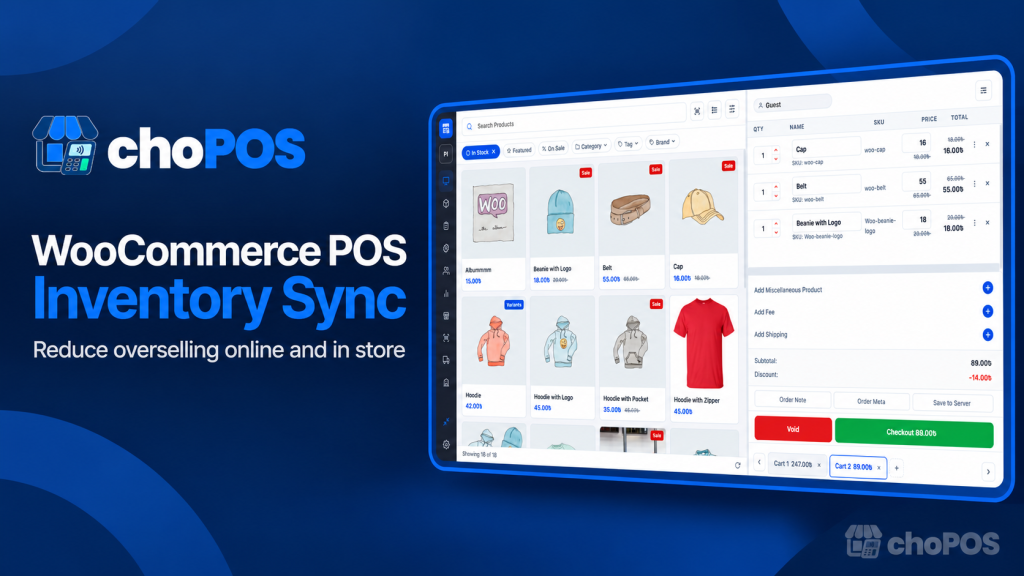
To reduce overselling across your WooCommerce website and shop counter, start with an accurate physical count, enable stock tracking on the right products or variations, and check how every sales channel changes that stock. Then test a sale, a return and the last remaining item on two devices.
A new POS can bring counter orders into WooCommerce, but it cannot correct every stock-setting mistake or guarantee that simultaneous orders are safe. This guide gives you a troubleshooting sequence and a test worksheet before you change systems. For the broader selection questions, start with our WooCommerce POS guide.
The last-item problem
Imagine one blue, size-large shirt on the shelf. An online customer buys it while a cashier still sees it in the POS product list. If both sales are accepted, the shop has promised the same unit twice. A stale screen, missing stock checks, delayed synchronization or an allowed backorder can each contribute.
First identify which quantity should have changed. The website may use WooCommerce stock, a branch may use a separate pool, and an external POS may synchronize on a schedule. Seeing two different numbers does not tell you which system is correct.
Check these causes before replacing your POS
- The stock count is already wrong. Compare shelf stock with WooCommerce, excluding damaged goods and stock allocated elsewhere.
- Tracking is disabled. Check the global setting and the product or variation that owns the quantity.
- The wrong variation is being sold. A blue large shirt and a blue medium shirt need a reliable way to identify the correct item.
- Backorders are allowed. A negative quantity can be an intentional setting rather than a synchronization failure.
- An order has not reached the expected stock-handling state. Inspect its status and notes, including pending payments, held orders and custom POS statuses.
- Another tool overwrites quantities. Supplier feeds, marketplace connectors, imports and a separate POS may all write inventory.
- A return changes money or stock differently than expected. A payment refund and putting sellable goods back on the shelf are separate decisions.
- A device is showing an old result. Refresh the product and order records before assuming that an on-screen number is current.
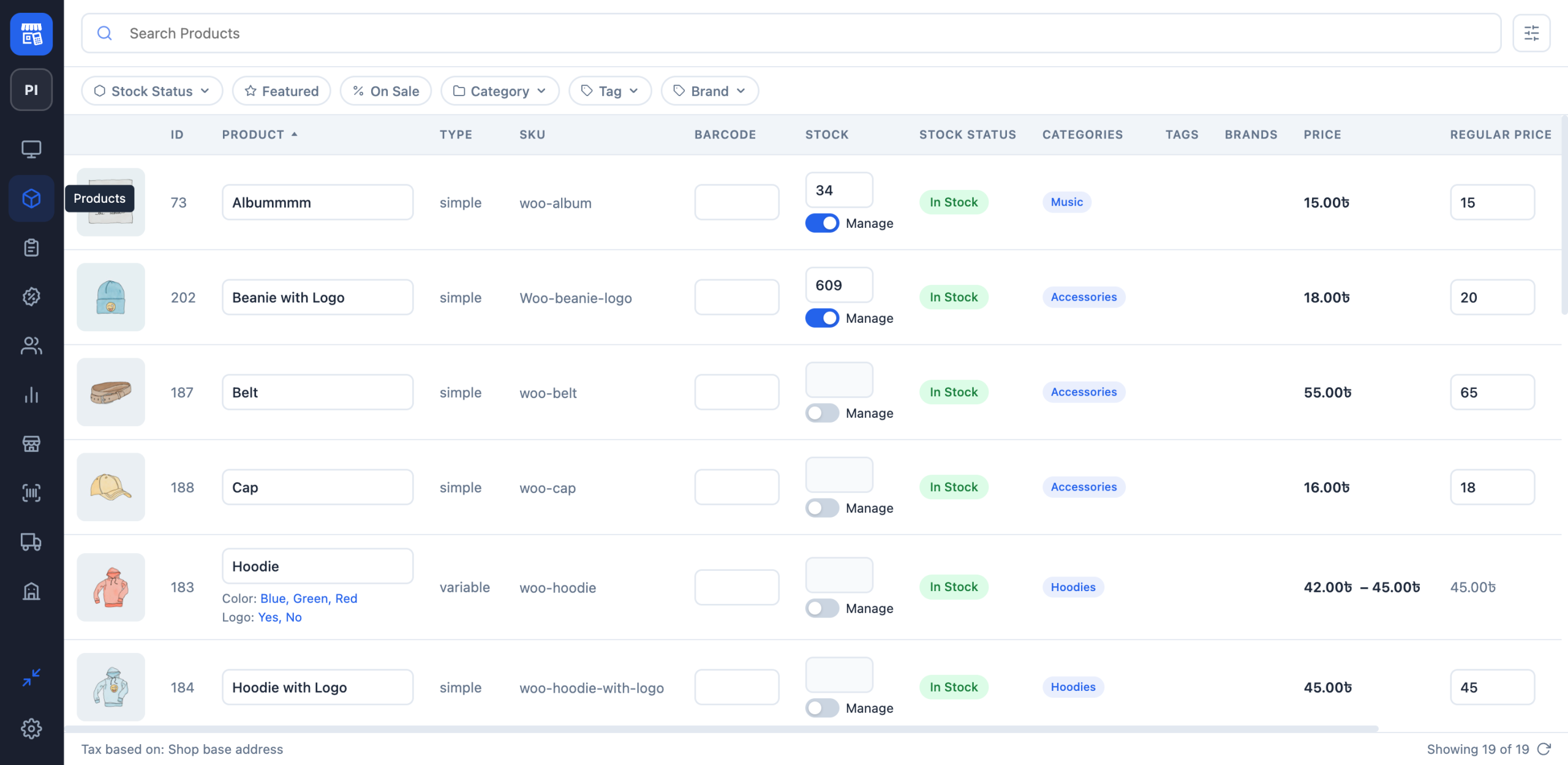
Set up stock tracking for the item you actually sell
In WordPress, open WooCommerce → Settings → Products → Inventory and check that stock management is enabled. Then edit a physical product and check its inventory settings. Enter a quantity based on a real count and choose the backorder behavior your shop intends to allow. See WooCommerce’s stock troubleshooting guidance.
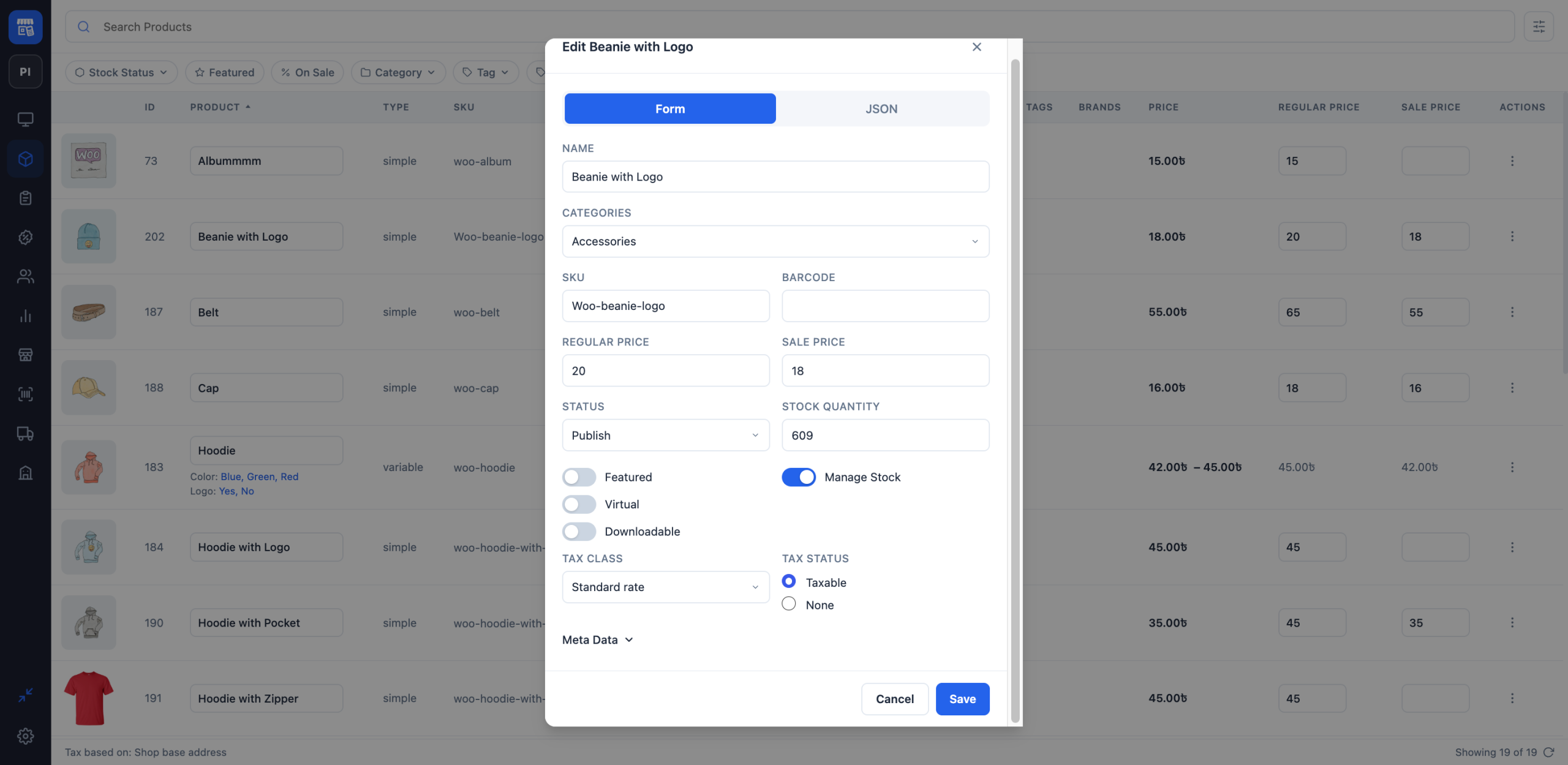
For variations, decide whether stock is managed for the parent product or separately for each variation. Independent size and colour quantities need the right variation settings; do not configure both levels by guesswork. WooCommerce documents these choices in its variable product guide.
Give the items you scan unambiguous identifiers. Check that the code on a label selects the intended product or variation, then compare the selected SKU and attributes before checkout. Our scanner setup guide covers the hardware checks.
Know where inventory is controlled
If your POS creates WooCommerce orders directly, trace one counter order through WooCommerce and inspect its stock movement. With two connected systems, also check the product match, synchronization settings and scheduled jobs.
For example, WooCommerce’s Square integration documentation describes a source of truth for product data and scheduled checks for inventory changes. Manual quantity edits can be replaced by a later synchronization. Confirm the configuration before changing quantities in both systems.
A shared WooCommerce catalogue removes one reason to maintain two product lists. It does not prove that every checkout path performs a fresh stock check or that a quantity shown on another device has updated.
Run a sale-and-return stock test
Use a staging store or a clearly identified test product and test payment workflow. Prevent test orders from sending real customer messages or triggering fulfillment. Start with one simple product; repeat with a variation before opening the counter.
- Record the software versions, product ID, SKU, stock location and starting quantity. Use five units for this example, with backorders disabled.
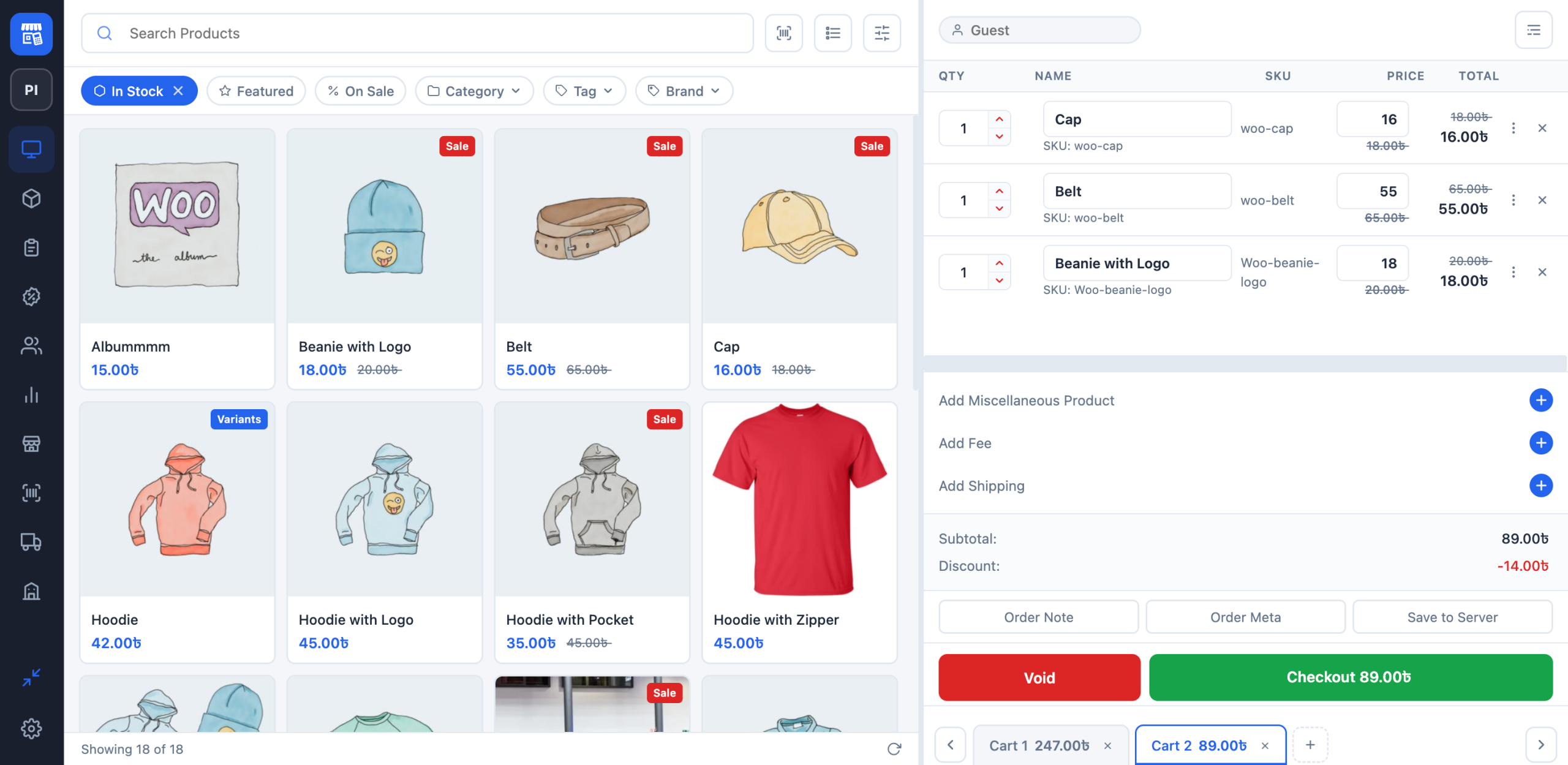
- On device A, open choPOS and select the correct product. Complete a one-unit sale using your test payment workflow.
- Open the resulting WooCommerce order. Record the order ID, status and stock notes, then reload the product quantity.
- On device B, refresh the storefront and the POS product view. Record what each shows; do not infer it from device A alone.
- Return that unit using the intended refund/restock workflow. Check that the product is sellable again and that the quantity is correct.
- Confirm how money is returned. Recording a refund in the POS is not evidence that an external card terminal has returned the payment.
The table below is an illustrative test worksheet. These are expected quantities to check, not measured results from a completed choPOS demonstration.
| Step | Expected shared stock | Actual result to record |
|---|---|---|
| Starting count | 5 | Quantity and timestamp |
| One completed counter sale | 4 | Order ID, status and saved quantity |
| Refresh on a second device | 4 | Storefront and POS display after refresh |
| Restock the returned unit | 5 | Refund record and inventory quantity |
If the actual result differs, stop and investigate before repeating the transaction. Check the existing order first after a timeout; clicking checkout repeatedly can create a second order when the first response was lost.
Test the last unit from two devices
Passing the five-unit test checks ordinary stock movement. A separate last-unit test checks a more demanding situation.
- Set the test product to one unit and disable backorders.
- Open the same item at the online checkout and the counter on separate devices.
- Complete the first test sale, then attempt the second sale after refreshing. Record whether it is rejected or allowed.
- Repeat with both baskets already open before either completes. If the shop needs simultaneous-sale protection, test overlapping requests under controlled conditions.
- Keep the order IDs, quantities and exact result. If both sales are accepted, do not claim overselling prevention; investigate the checkout validation before launch.
No shared-stock label, success message or marketing claim replaces this test. Ask support about the exact failure with your versions, product type, order statuses and inventory setup.
How this applies to choPOS Free and Pro
choPOS Free saves counter sales as WooCommerce orders and is intended for one store. It is a suitable starting point for testing a shared online-and-counter workflow. choPOS needs internet to load products and save orders; a local cart is not proof of a completed offline sale.
choPOS Pro adds branch inventory. The main store uses the website’s WooCommerce stock; other stores keep separate stock. A sale in a separate branch should affect that branch’s quantity. Verify the store selection and test the return in the same stock pool.
Use the Free vs Pro comparison when separate branches, purchasing or printing new barcode labels are the need. Scanning an existing label alone is a different task from generating labels. Buying Pro is not a substitute for checking backorders, counts or checkout validation.
Keep stock reliable after the test
- Record every sale through the agreed workflow and check for an existing order before retrying a timeout.
- Count frequently sold or easily confused items regularly and record why adjustments were made.
- Check variations and new barcode labels before they reach the counter.
- Review returns, cancellations and failed payments with the order notes and payment provider.
- After changing the POS, gateway or inventory integration, repeat the stock tests.
Frequently asked questions
Does WooCommerce stock management stop every oversell?
No. It is a necessary configuration for tracked inventory, but backorders, integrations, checkout behavior and simultaneous sales still need testing.
Why does the POS show stock that the website no longer has?
Check whether the screen needs refreshing, whether both channels use the same product and stock pool, and whether a separate inventory sync is delayed or failing. Inspect the saved order and product quantity rather than relying on one screen.
Will a refund always put stock back?
That depends on the refund path and restocking choice. Check the returned quantity, whether the goods are sellable, and the inventory after the return. Also verify the payment refund separately.
Where should I start with choPOS?
Follow the WooCommerce POS setup guide and run the sale-and-return worksheet with choPOS Free. Save the order IDs and quantities before making the counter live.