Official WooCommerce POS vs choPOS: App vs Plugin Requirements Compared
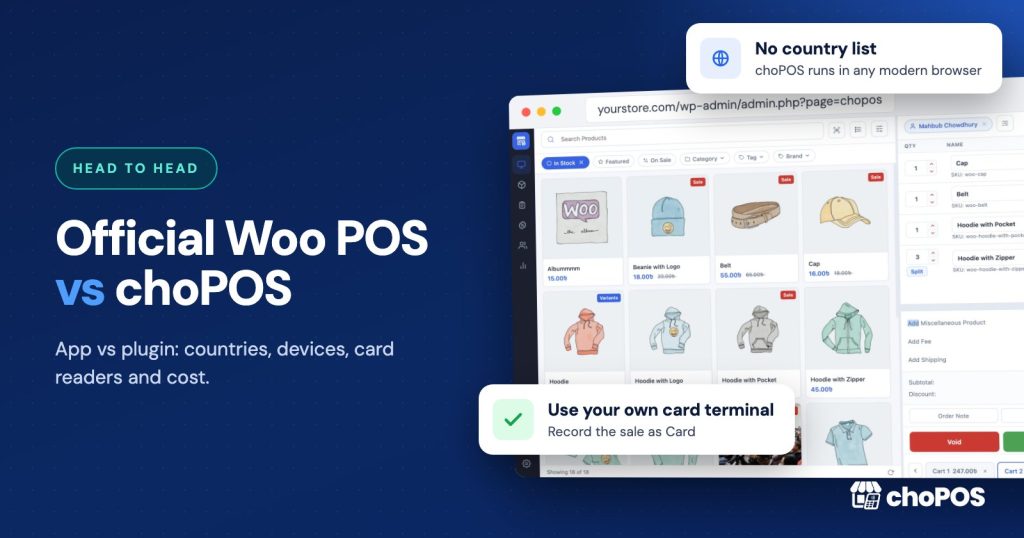
The official WooCommerce POS lives in the free Woo mobile app and fits shops that meet its requirements: a store in one of the supported countries, that country’s currency, WooPayments or Stripe, a supported tablet or iPhone, and simple or variable products. choPOS is a plugin that runs in a browser inside your WordPress dashboard, with no country list, and records card sales taken on whatever terminal you already use. If you meet the app’s requirements and want built-in card payments, start with the app.
Disclosure: We make choPOS, so weigh this accordingly. We have tried to give the official app a fair hearing, including a section on when it is the better pick. Weighing more options? Our WooCommerce POS comparisons page links to every head-to-head we have written.
How we compared: The facts about the official app below come from WooCommerce’s own documentation, checked on November 5, 2026. We did not test it on a supported device, so treat that column as documentation-based. The choPOS facts come from our WordPress.org listing and Free vs Pro page.
WooCommerce POS app vs plugin: what is the difference?
Both save every sale as a WooCommerce order, so stock and customers stay in one place. The difference is where the till runs and how it takes cards.
The official WooCommerce POS is a mode inside the Woo mobile app, which WooCommerce describes as free. You install the app on a tablet (or, in one case, an iPhone), connect a card reader through WooPayments or Stripe, and sell from the app. Card payments are built in: the customer taps, swipes or inserts a card on the reader, and the money goes through your processor account.
choPOS is a WordPress plugin. The till runs inside your WordPress dashboard in a web browser, on a computer, tablet or phone. Each cashier signs in with their own WordPress account. choPOS does not connect to a card reader. You take the card on your own terminal, from any bank or processor, and then mark the sale as “Card”, a payment method built into choPOS. That records the payment on the order but does not charge the card. Any enabled WooCommerce gateway is also available. Cash with change due and part payments are built in.
What are the official WooCommerce POS requirements?
According to WooCommerce’s POS mode documentation, checked on November 5, 2026, you need all of the following:
- Store country: your store address must be in a supported country. The list on that date was Australia, Canada, Finland, Ireland, Luxembourg, the Netherlands, New Zealand, Singapore, the United Kingdom and the United States. The list changes, so check the page rather than any count you read elsewhere, including older articles on this site.
- Currency: the docs say “You must be using that country’s native currency as the store currency.” A UK store priced in euros does not qualify.
- Payment processor: “To accept card payments, you can use WooPayments or Stripe.”
- Card reader: the M2 reader in the US, the WisePad 3 in the UK and other supported countries, or an Android phone running Remote Tap-to-Pay.
- Software: WooCommerce 9.6 or later and Woo mobile app 21.8 or later (24.7 in some countries). From WooCommerce 11.0, POS is always on for eligible stores.
- Device: a tablet on iOS 18 or later, or Android 9 or later. On phones, the docs say “Phone POS is currently available to UK merchants on iOS only (iOS 26+, WooMobile app 25.1+).” Android phones are not supported for POS.
- Products: the feature overview lists “Simple physical, Variable and Virtual products.” A later section says “only simple and variable physical products are available in POS mode at the moment.” Other product types are promised in future updates. If you sell virtual products, test before you commit.
The separate WooPayments in-person payments guide adds Tap to Pay details by country. On November 5, 2026, it listed Tap to Pay on iPhone for the US and UK, and Tap to Pay on Android for the US, UK and Canada. The other supported countries use the WisePad 3 reader only.
How do the requirements compare side by side?
| Requirement | Official WooCommerce POS (docs, Nov 5, 2026) | choPOS |
|---|---|---|
| Where it runs | Woo mobile app on a supported tablet, or iPhone in the UK | A browser, inside the WordPress dashboard |
| Countries | 10 listed countries, store address must match | No country list |
| Store currency | Must be the country’s native currency | Uses your WooCommerce currency settings |
| Card payments | Built in, through WooPayments or Stripe readers | Not built in. Take the card on your own terminal, then mark the sale as “Card”. This records the payment but does not charge the card |
| Other payments | Cash with change due | Cash with change due, part payments with a balance due, any enabled WooCommerce gateway |
| Product types | Simple and variable physical (virtual listed in one section) | Your WooCommerce products, including variable products, plus custom items, fees and shipping |
| Barcode scanning | Bluetooth HID scanners, matched on GTIN, UPC, EAN or ISBN, not SKU. No camera scanning | USB and Bluetooth scanners, plus the device camera in browsers that support it. Matched on SKU or a barcode field |
| Receipts | Email receipts | 80 mm and 58 mm thermal, A4, PDF and email. Gift receipt, packing slip and kitchen ticket templates |
| Staff | The POS docs do not describe cashier accounts or roles | Each cashier signs in with their own WordPress account, with cashier, manager and reports permissions |
| Reports | POS order history with search and email receipts | Sales totals, payment methods, taxes and a sales chart for any date range, filtered by cashier |
| Branch stock | Not described in the POS docs | Pro: unlimited stores, each with its own stock |
| Software cost | Free app | Free plugin. Pro from $29 a year or $49 once |
Barcode details for the app come from WooCommerce’s POS barcode scanning guide, which says “POS does not support the SKU for barcodes” and that camera scanning is not possible.
Why is WooCommerce POS not available in my country?
The official POS depends on WooPayments or Stripe card readers, and those are sold and supported only in certain countries. If your store address is outside the list, or your store currency is not that country’s own, the POS tab will not be available to you in the app. There is no setting that works around it.
Your options are to wait for Woo to add your country, or to use a POS plugin that does not depend on a processor. choPOS has no country list. It uses your WooCommerce currency and tax rates, and you take cards on your own terminal.
One caution: being able to install a POS in your country is not the same as being compliant there. Some countries have fiscal rules for cash registers, such as certified devices or reporting to the tax office. Neither the official app’s documentation nor ours claims compliance with those rules. Check your local requirements before you sell.
What does each option cost?
| Cost | Official WooCommerce POS | choPOS |
|---|---|---|
| Software | Free app | Free. Pro: $29 a year or $49 once (1 site), up to $99 a year or $199 once (Agency) |
| Device | A supported tablet, or an iPhone on iOS 26 in the UK | Any device with a modern browser |
| Card reader | M2 or WisePad 3, priced on Woo’s reader pages | Whatever terminal you use now or choose |
| Reader fee | $5, £5 or €5 per active reader per month (3 or more transaction attempts that month). Tap to Pay on a phone does not trigger it | Set by your terminal provider |
| Fees from the POS maker per sale | None beyond processor fees | None |
Processor fees are separate from both tools. With the official app, they are WooPayments in-person rates. The WooPayments fees page on November 5, 2026, listed these in-person base rates, among others:
- United States: 2.70% + $0.10, plus 1.00% for international cards
- United Kingdom: 1.40% + £0.20, plus 2.00% for international cards
- Canada: 2.70% + $0.05 for non-Interac cards, $0.15 for Interac
- Finland, Ireland, Luxembourg and the Netherlands: 1.40% + €0.10
- Australia: 1.7% + $0.10. New Zealand: 2.6% + $0.05. Singapore: 3.40% + $0.50
With choPOS, the processor fee is whatever your terminal provider charges. That can be more or less than WooPayments. choPOS adds nothing on top, but it also does not negotiate your rate. Compare your provider’s quote with the WooPayments rate for your country before deciding on cost alone.
To see how the pieces add up, take an illustrative US shop doing 400 card sales a month at an average of $25, or $10,000 in card sales. At 2.70% + $0.10, the WooPayments fees come to $270 plus $40, so $310, plus $5 for one active M2 reader. That is about $315 a month in processor costs, with free software. With choPOS, the same shop pays its own terminal provider’s fees, plus $0 for choPOS Free or $49 once for Pro. These are worked numbers, not real customer figures.
Which shop fits the official app better?
Here is an illustrative example. A gift shop in Ohio already takes online payments with WooPayments. It sells about 150 products, all simple or variable, with UPC barcodes from its suppliers. The owner wants one iPad on the counter and card payments that land in the same WooPayments account as online orders.
This shop meets every requirement: a US address, US dollars, WooPayments, an iPad on iOS 18 or later and supported product types. It buys an M2 reader, and card payments, refunds and payouts stay in one place. Its UPC barcodes go in the GTIN field, which the app scans.
choPOS would work too, but each card sale would need a separate terminal and a second step. Here the official app is simpler.
Which shop fits choPOS better?
Another illustrative example. A homeware shop in Germany runs WooCommerce in euros. Germany is not on the official POS country list, so the app’s POS mode is not available to it. The shop already has a card terminal from its bank and a thermal receipt printer at the counter. Two staff members share shifts, and the owner wants to see each person’s sales. Its barcodes sit in the SKU field.
With choPOS, the counter runs in a browser on the shop’s existing laptop. Each cashier signs in with their own WordPress account, and reports can be filtered by cashier. A USB scanner reads the SKU barcodes as they are. The cashier takes the card on the bank terminal, marks the sale as “Card” in choPOS and prints an 80 mm receipt. A second branch with its own stock would need choPOS Pro.
The trade-off: payment and order are two steps, and terminal payouts are reconciled outside WooCommerce. The shop must also check Germany’s cash register rules, which choPOS does not claim to cover. For guidance on the hardware side, see our receipt printer and barcode scanner setup guide.
What happens if the internet drops?
Neither option is built for offline selling, so plan for a backup connection with both.
The official app stores the product catalog on the device for fast search, but the docs say “POS mode will always fetch current data from your site during checkout.” They do not describe offline checkout. Card payments through WooPayments also need a connection.
choPOS does not work offline. The terminal needs a connection to your WordPress site to load products and save orders. Open carts and terminal settings are kept in the browser on each device, and orders are always saved on your site.
When is the official WooCommerce POS the better pick?
Choose the official app if most of these are true:
- You are in a supported country and use its currency. That is the entry ticket.
- You want card payments built into the till. One tap charges the card and creates the order. There is no second step and no separate terminal statement.
- You already use WooPayments or Stripe online. In-person and online payments then share one account.
- You want Tap to Pay on a phone, where your country supports it, with no reader to buy.
- Your catalog is simple and variable physical products with barcodes in the GTIN field.
- You prefer a native app from WooCommerce, and email receipts are enough.
choPOS is likely the better fit if you are outside the supported countries, want to keep your current card terminal, sell from a computer or an Android phone, need printed thermal or A4 receipts, scan barcodes stored in the SKU field, want each cashier to sign in separately, or need separate stock for more than one store. Our roundup of the best WooCommerce POS plugins covers other options.
How do you test both before you switch?
- Check the official requirements against your store address, currency, processor and device.
- If you qualify, note that WooCommerce says POS cannot be tested while WooPayments is in test mode. Its suggestion is a temporary $1 product bought with a real card.
- Install choPOS Free, run a few sales with your real products, print a receipt and refund one order. Our in-person POS setup guide walks through it.
- Compare your terminal provider’s rates with WooPayments in-person rates for your country.
Key takeaways
- The official WooCommerce POS is a free mode in the Woo mobile app. choPOS is a plugin that runs in a browser inside WordPress.
- The official app needs a supported country, that country’s currency, WooPayments or Stripe, a supported device and simple or variable products. Check the current list on Woo’s docs.
- The app has built-in card payments. choPOS has no country list. You take the card on your own terminal and mark the sale as “Card”, which records the payment but does not charge the card.
- Processor fees are separate from both tools.
- Neither is built for offline checkout. Neither guarantees local fiscal compliance.
Frequently asked questions
Why is WooCommerce POS not available in my country?
The official POS needs a store address in a supported country, that country’s native currency, and WooPayments or Stripe card readers. On November 5, 2026, Woo’s docs listed 10 countries. If yours is not listed, a browser-based plugin such as choPOS works with any card terminal instead.
Is there an official WooCommerce POS alternative that runs in a browser?
Yes. choPOS runs inside your WordPress dashboard in a browser on a computer, tablet or phone. Every sale is a normal WooCommerce order. The free version has no limits on products, sales or cashiers.
Can I use my own card terminal with the official WooCommerce POS?
The docs list only WooPayments or Stripe with the M2 or WisePad 3 readers, or Remote Tap-to-Pay. With choPOS, you take the card on your own terminal from any bank or processor, then mark the sale as “Card”. That records the payment but does not charge the card.
Does either option work offline?
Not for checkout. The official app caches the catalog but fetches current data from your site at checkout. choPOS needs a connection to your WordPress site to load products and save orders.
Which one is cheaper?
Both are free to start. The official app adds WooPayments in-person fees and $5 per active reader per month. choPOS Pro costs $29 a year or $49 once, and your terminal provider sets its own fees.
Try choPOS on your own store
If you qualify for the official app and want built-in card payments, try it first. Otherwise, download choPOS Free from WordPress.org and ring up a few test sales on your own products. If you later need branches, purchase orders or barcode labels, the Free vs Pro comparison shows what Pro adds, and the WooCommerce POS guide covers the wider setup.