WooCommerce POS Split Payment and Partial Payment: Deposits, Balances and Split Tender
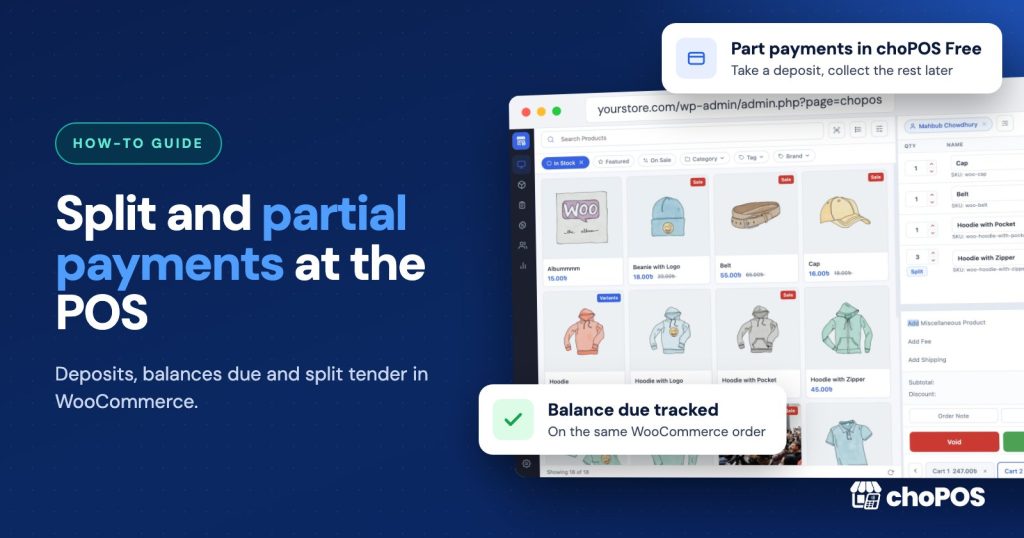
WooCommerce core can’t take a partial payment at the counter, but a POS plugin can. In choPOS Free, you enter less cash than the total, and the order is saved with a balance due that you collect later. choPOS does not split one checkout across two payment methods, so for part cash, part card you either split the basket into two orders or take a part payment and collect the rest by card.
We make choPOS, so weigh this accordingly. This guide sticks to what the plugin does today and says plainly where it stops. For other tools, see our WooCommerce POS comparisons.
What is the difference between a partial payment and a split payment?
People use the two terms loosely, but they are different jobs at the counter.
- Partial payment (part payment). The customer pays some of the total now and the rest later. Deposits on made-to-order items, reservations and layaway all work this way. The order stays open with a balance due.
- Split payment (split tender). The customer pays the full total today, but with two or more methods. For example, $40 in cash and $60 on a card. Nothing is owed when they leave.
The difference matters for your books. A part payment leaves money owed to you. A split payment leaves money in two places, your drawer and your card provider, that must add up to one sale.
Does WooCommerce support partial payments on its own?
No. WooCommerce core has no counter screen, and its order statuses assume an order is either unpaid or paid. According to the WooCommerce order statuses documentation (checked in November 2026):
- Pending payment means the order has been received, but no payment has been made.
- On hold means the order is awaiting payment confirmation, and stock is reduced.
- Processing means payment has been received and stock has been reduced.
- Completed means the order is fulfilled and needs no further action.
There is no “half paid” status, and an order has one payment method. For deposits online, Woo sells the WooCommerce Deposits extension at $219 a year (November 2026). It lets shoppers pay a deposit or follow a payment plan at your web checkout. Its listing notes that follow-up payments are not collected automatically: customers return to the store to pay their balances. It is built for the online shop, not a till.
So for in-person deposits and balances, you need a POS that records both the amount paid and the amount still owed.
How do you take a deposit in choPOS?
“Part payments with a balance due” is included in choPOS Free. You don’t need Pro. Here is the workflow for a $300 made-to-order table with a $100 cash deposit.
- Build the cart. Add the product, or a custom item if it is a one-off. Add any fees, shipping or a coupon, and an order note such as “Deposit for oak table, collect 12 December”.
- Pick or create the customer. Always attach a named customer to a deposit. It is how you will find the order again, and how the customer proves they paid.
- Open checkout and choose Cash. The Amount Tendered field is where the part payment happens.
- Enter the deposit, not the total. Type 100. Because that is less than the $300 total, choPOS shows a Balance Due of $200 and the button changes to Take Partial Payment.
- Confirm and print or email the receipt. The receipt shows what was paid and the balance due, so the customer has a written record.
The sale is saved as a normal WooCommerce order with the status “POS – Partial Payment”. In the terminal’s Orders screen it shows the amount still due. The stock is reduced when the part payment is taken, so a reserved item can’t be sold to someone else online or at the counter. Our guide to stopping overselling explains why shared stock matters here.
If you enter more than the total instead, choPOS treats it as a normal cash sale and shows the change due.
How do you collect the balance later?
When the customer comes back to pay the $200:
- Open Orders in the terminal and filter by the customer, or search for the order number on their receipt.
- Take the $200 in cash, or on your card terminal.
- A manager opens the order’s actions menu, chooses Edit, and sets the status to Completed. Editing orders in the terminal needs manager rights (the choPOS manager capability or WooCommerce’s Shop Manager role).
- choPOS adds an order note, “Remaining balance of $200.00 collected”, and the balance due drops to zero.
- Print or email a fresh receipt so the customer has proof the order is paid in full.
Changing the status to Completed from the WooCommerce order screen in wp-admin has the same effect, which is handy for a manager in the back office.
Two cautions. First, use Edit to collect a balance, not Re-open. Re-open moves the order back to “POS – Open” and loads it into a cart for editing, which is for changing what was sold. Second, a part-paid order keeps the payment method chosen at checkout. If the balance was paid by card, write that down in an order note, as the reconciliation section explains.
If the customer cancels, a manager can refund the order from the terminal. On a part-paid order, the refund is the amount you actually collected, not the full order total.
Can you split one sale between cash and card?
Not in a single checkout. choPOS records one payment method per order, so there is no screen where you enter $40 cash and $60 card against one sale. If you need that as a built-in feature, see the “better pick” section below. Most counters handle it with one of two workarounds.
Option 1: split the basket into two orders
This is the cleanest option when the split lines up with the items. A customer buys a $60 lamp and a $40 vase, and wants to pay cash for the vase.
- Ring up the lamp in the first cart.
- Open a second cart for the vase. choPOS keeps several carts open at once, and you can split a line if the customer buys several of one item.
- Take the card on your terminal and record the first cart as Card.
- Take the cash and record the second cart as Cash, with change due if needed.
Each order has one honest payment method, so your reports and drawer count match without any adjustment. The cost is two receipts, and a coupon that needs a minimum spend may need care.
Option 2: part payment in cash, balance on card
Use this when the split doesn’t line up with items, such as one $100 coat paid $40 cash and $60 card.
- At checkout choose Cash and enter 40 as the amount tendered. Take Partial Payment. The order shows a $60 balance due.
- Take the $60 on your card terminal.
- A manager edits the order and sets it to Completed. choPOS notes the $60 balance as collected.
- Add an order note such as “Balance $60 paid by card, terminal ref 4821”.
The customer gets one receipt. The trade-off is in your reports: the order’s payment method is still Cash, so the full $100 counts as cash. Your drawer will be $60 short of the cash figure, and your terminal $60 over. The note is what lets you explain the difference at closing.
How do card terminals and gateways fit in?
choPOS doesn’t connect to card readers or charge cards itself, and it adds no per-sale fee. At checkout you choose how the customer paid:
- Cash, with amount tendered and change due, or a part payment with a balance due.
- Card, a POS-only method for payments taken on an external terminal from any bank or provider.
- Any enabled WooCommerce payment gateway, such as bank transfer, so the till uses the same methods as your online shop.
Because the card terminal is separate, the cashier enters the amount twice: once in choPOS and once on the terminal. For split and part payments, always type the card amount on the terminal, not the order total. Our WooCommerce POS setup guide covers payment methods in more detail.
How do you reconcile part and split payments?
Deposits and split tenders are where end-of-day counts go wrong. These habits keep them honest.
- Run the sales report by payment method every day. choPOS reports show totals by payment method for any date range, filtered by cashier, customer, status or payment method. Compare Cash with the drawer and Card with your terminal’s own end-of-day total.
- Explain every gap with an order note. If you used Option 2, add up the “paid by card” notes for the day. Cash in the report minus those amounts should equal your drawer.
- Keep a list of balances due. Filter Orders by the “POS – Partial Payment” status each week. Each one is money a customer owes you, and an item you have set aside.
- Don’t confuse parked carts with deposits. A “POS – Open” order is an unpaid cart held for later, with no money taken. A “POS – Partial Payment” order has money taken. Finish or cancel open carts at closing time.
- Know who can collect. Completing a part-paid order is a manager task, and cashiers see only the POS orders they created. Make sure a manager is on shift on collection days, or that cashiers know who to call.
- Write deposit terms on the receipt or note. State the collection date and whether the deposit is refundable, so there is no argument later.
When is another tool the better pick?
choPOS covers deposits well. It is not the best fit for every payment setup.
- You split tender many times a day. If customers often pay with two methods for one item, the workarounds above add steps. FooSales lists split payments in all of its plans on its pricing page (November 2026), from $19 a month billed yearly.
- Customers pay deposits online. If deposits and payment plans happen at your web checkout, WooCommerce Deposits is built for that, at $219 a year.
- You want card amounts sent to the reader automatically. choPOS records card payments taken on a separate terminal. Tools with integrated readers avoid typing the amount twice. Our best WooCommerce POS plugins roundup lists which ones integrate readers.
Key takeaways
- WooCommerce core has no partial payment status, and an order has one payment method.
- choPOS Free takes part payments with a balance due: enter less than the total as cash tendered, and the order is saved as “POS – Partial Payment”.
- Collect the balance by editing the order and setting it to Completed. choPOS notes the balance as collected.
- choPOS can’t split one checkout across two methods. Split the basket into two orders, or take a cash part payment and the balance on card with a note.
- Reconcile daily by payment method, and review open balances weekly.
Frequently asked questions
Can WooCommerce take partial payments in store?
Not on its own. WooCommerce core has no counter screen and no partial payment status. A POS plugin such as choPOS adds it: choPOS Free saves a part-paid sale as a WooCommerce order with the status “POS – Partial Payment” and a balance due.
Does choPOS support split payments?
Not in one checkout. Each order has one payment method. To take part cash and part card, split the basket into two orders, or take the cash as a part payment and collect the balance on your card terminal, then add an order note.
Do I need choPOS Pro for part payments?
No. Part payments with a balance due, cash with change due, the Card method and any enabled WooCommerce gateway are all in choPOS Free. Pro adds multiple stores, purchasing and vendors, and barcode labels.
Does a deposit reduce stock in choPOS?
Yes. Stock is reduced when the part payment is taken, so the item is held for the customer and can’t be sold again online or at the counter.
Try choPOS on your own store
The best test is one fake deposit on your own products. Download choPOS Free from WordPress.org, take a part payment, collect the balance, and check how it looks in your reports. If you later need several stores, purchase orders or barcode labels, the Free vs Pro comparison shows what Pro adds, and the pricing page lists every plan.