WooCommerce Black Friday Checklist for In-Store Sales (2026)
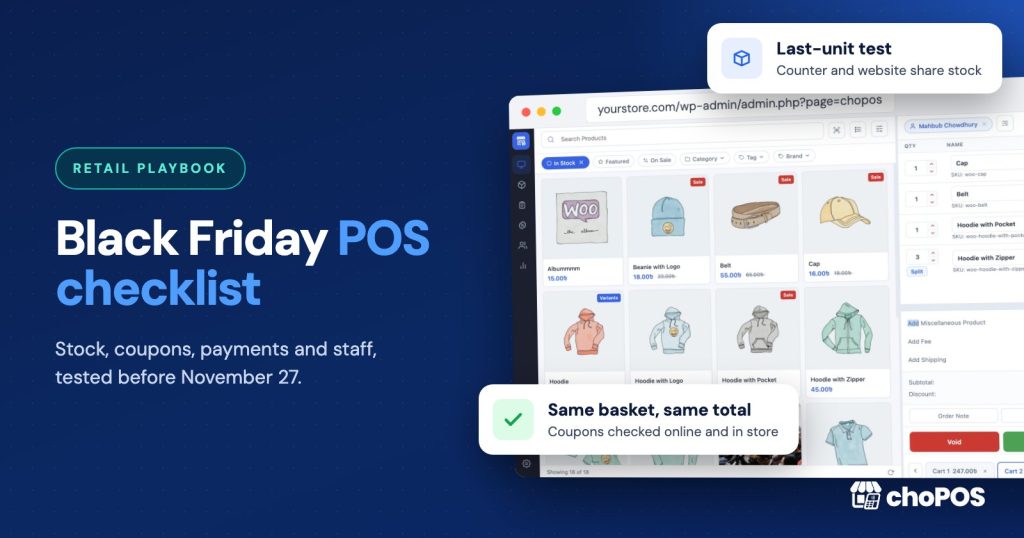
Black Friday is Friday, November 27, 2026, and Cyber Monday is November 30. If your WooCommerce shop also sells at a counter, test four things before then: stock (one count for online and in store), coupons (the same basket gives the same total in both places), payments (every method reconciles at close), and staff (each person can run a sale, a hold and a refund without help). This checklist gives you the tests, a worksheet and a timeline.
We make choPOS, a point of sale for WooCommerce, so some steps mention how it behaves. Every check works with any POS that saves sales as WooCommerce orders. The checklist is about your shop’s busiest weekend, not about selling you anything.
Why does a counter make Black Friday harder?
An online-only shop has one checkout to test. A shop that also sells in person has two, and both draw on the same stock, the same coupons and the same tax settings. Most Black Friday problems at a mixed shop come from the gap between them:
- The last unit sells at the counter and online within the same minute.
- A coupon works on the website but a cashier gives a manual discount instead, so the totals and reports no longer agree.
- A card payment times out and the cashier rings the sale up again, so the customer is charged twice.
- A temporary staff member uses someone else’s login, and nobody can tell later who took which sale.
None of these needs new software to fix. Each needs a test run before the rush, with the result written down.
How should you use this checklist?
Copy the worksheet below into a spreadsheet. Give every check an owner and write down what you expect to happen before you test it. A check passes only when someone has run it on the real shop, with the real equipment, and recorded the actual result. “I think it works” is a fail.
| Check | Owner | Expected result | Actual result | Evidence | Pass / fail |
|---|---|---|---|---|---|
| Sell last unit at counter, then try online | Shop manager | Online shows out of stock | Order number + screenshot | ||
| Test basket with BF coupon, online and at POS | Owner | Same total, same tax | Both order numbers | ||
| Card sale on the real terminal, then refund | Senior cashier | Order, terminal and bank agree | Terminal slip + order | ||
| Print receipt and scan 5 busiest products | Cashier | Correct item and variation | Printed receipt | ||
| Each staff login runs sale, hold, refund | Each staff member | Done without help | Practice orders |
Add a row for every check in the sections below that applies to your shop.
How do you check stock before Black Friday?
Stock errors are the most expensive mistake on a busy day, because each one ends with a refund and an unhappy customer. Work through these in order.
- List your 20 busiest products and their variations. Use last year’s Black Friday orders, or your best sellers from the last 90 days in WooCommerce Analytics. These are the items worth counting by hand.
- Count them and correct WooCommerce. A physical count against the stock figure in WooCommerce. Fix differences now, not on the day.
- Check stock management is on for each one. In each product’s Inventory tab, “Track stock quantity” must be ticked, at product level or on every variation. Untracked products never go out of stock, online or at the counter.
- Decide on backorders. For deal items, “Do not allow” is usually right. Allowing backorders on a discounted item you can’t restock means selling stock you don’t have.
- Set low-stock alerts. Under WooCommerce, Settings, Products, Inventory, set a low-stock threshold and the email that receives it, so someone knows when to pull an item from the window or the homepage.
- Run the last-unit test. Set a test product to a stock of 1. Sell it at the counter, then try to buy it online. It should show as out of stock. Then refund the counter sale with “restock” and confirm the stock returns to 1.
With choPOS, counter sales are ordinary WooCommerce orders, so stock drops the moment the sale is saved, and the last-unit test should pass without extra setup. Our guide to stopping overselling between your shop and website explains why, and what to check if it doesn’t.
More than one shop? Decide now whether each branch sells from shared stock or its own. If you are adding a branch for the season, test a sale and a refund at that branch and confirm only the right stock moves. In choPOS, separate stock per store is a Pro feature. The main store always shares stock with your online shop.
New labels? If you print shelf or product labels for deal items, scan a label for every variation of your top products. A label on the medium that rings up as the large is a stock error in both sizes.
How do you test Black Friday coupons and discounts?
The rule to aim for: the same basket costs the same online and at the counter. If it doesn’t, customers notice, and your reports stop making sense.
- Build three test baskets: one regular-price item, one item already on sale, and one variable product. Apply the Black Friday coupon to each, online and at the POS, and write down both totals, including tax.
- Check every coupon restriction: minimum spend, excluded categories and sale items, usage limit per coupon and per customer, and whether it can be combined with other coupons (“Individual use only”).
- Check start and end times. Coupon expiry dates and scheduled sale prices follow the time zone in WooCommerce, Settings, General. Test exactly when the coupon stops working, and when scheduled sale prices switch on and off, so a “weekend only” deal doesn’t end on Saturday night. Scheduled sale prices depend on WordPress’s scheduled tasks running, so check the prices on the morning they should change.
- Agree a manual discount rule. Decide when a cashier may type a discount and when they must use the coupon. A coupon is tracked in WooCommerce’s coupon reports; a manual price change shows only as a lower line total. A simple rule works: deals use the coupon, and manual discounts need a manager.
In choPOS, cashiers can apply WooCommerce coupons at the till or give a one-tap percentage discount on the cart. Both end up in the WooCommerce order, but only the coupon appears under that coupon’s usage. Pick one method per deal and tell staff which.
How do you check payments, internet and hardware?
Payments
- Run a real card sale and refund it. Small amount, real card, real terminal. Then refund it and check the money comes back. If your card machine is separate from your POS, remember that marking an order as “Card” only records the payment; it does not charge the card. The terminal slip is your proof.
- Practice a timeout. What does a cashier do if the terminal says “declined” or freezes? The safe answer: check the terminal’s last transaction and look up the existing order before ringing anything up again. Write this on a card at the till.
- Test cash with change. Ring up a sale, enter the amount tendered and check that the change shown is right.
- Test a part payment if you take deposits or split tender. For example, half cash and half card. Check the order shows the balance correctly and closes when it is paid.
- Decide who handles card refunds. A refund in WooCommerce does not reverse a payment taken on a separate terminal. Name the person who does both.
Internet
A browser-based POS needs a working connection to your WordPress site. choPOS does not work offline: it loads products and saves orders on your site. So:
- Test the shop Wi-Fi at the till, at the busiest time of day, with customers’ phones on the network.
- Set up a backup: a phone hotspot or a second connection. Connect the till to it once before the day, so you know the password and the steps.
- Check your hosting. A traffic spike online can slow the admin for counter staff too. Ask your host whether your plan handles it, and avoid plugin updates during the weekend.
Hardware
- Print a real receipt on the exact printer and paper roll you will use, and check the store name, address, tax lines and return policy are right. Buy spare paper rolls now.
- Scan the barcodes of your 20 busiest products, including variations, and check each one adds the right item to the cart.
- Charge every tablet, scanner and terminal, and keep chargers at the till.
Our receipt printer and barcode scanner setup guide covers the settings for each.
How do you get staff ready?
- One login per person. Create a WordPress account for every cashier, including seasonal staff, with the lowest role that does the job. Shared logins make it impossible to trace a sale or a refund.
- Test permissions. Sign in as a cashier and confirm they can sell but cannot do what they shouldn’t, such as editing products. In choPOS, cashiers see only their own orders and held carts; managers see everything.
- Practice the five situations that happen every Black Friday: a normal sale, a held cart (the customer goes back for another size), a cancelled sale, a return, and a sale with the deal coupon. Each person runs all five once.
- Name an escalation contact. One person on shift who handles refunds, price disputes and anything that breaks. Their name goes on the card at the till.
- Write the outage plan. If the POS or the internet goes down: what do staff do? A common plan is a paper log of item, price, payment method and time, with card payments on the standalone terminal. A manager enters the sales afterwards. Practice entering one.
How do you close the day and reconcile?
Practice the close before Black Friday, not after it. After a practice session:
- Pull the day’s POS orders by payment method. In choPOS, the sales report covers any date range and filters by cashier and payment method.
- Count the cash and compare it with the cash total.
- Compare the card total with the terminal’s end-of-day report.
- Check for orders still open or on hold and decide what happens to each one.
- Note every difference and its cause. One unexplained difference in practice means many on the day.
What is the timeline from now to Black Friday?
| By | Finish |
|---|---|
| Friday, November 13 | Stock count of busiest products, stock management and backorder settings, last-unit test, first real card sale and refund |
| Friday, November 20 | Coupons created and tested in all three baskets, receipt and barcode checks, backup internet tested, staff logins created |
| Tuesday, November 24 | Staff practice of all five situations, a practice close and reconciliation, outage plan printed at the till, every failed check fixed and re-tested |
| November 25–26 | Freeze: no plugin, theme or POS changes. Charge devices, stock paper rolls. |
| November 27–30 | Run the setup you tested. Reconcile at the end of each day, not just at the end of the weekend. |
Don’t switch POS during the rush. If you are unhappy with your current system, write down what went wrong this weekend and change in December, when you can test properly.
Key takeaways
- Black Friday is November 27, 2026, and Cyber Monday is November 30. Finish testing by November 24 and freeze changes after that.
- Run the last-unit test: sell at the counter, then check the website shows out of stock.
- The same basket with the same coupon must cost the same online and at the till.
- Recording “Card” is not a card charge. Reconcile every terminal against WooCommerce daily.
- One login per person, five practiced situations, one named escalation contact and a written outage plan.
Frequently asked questions
When is Black Friday 2026?
Black Friday is Friday, November 27, 2026, the day after US Thanksgiving. Cyber Monday is Monday, November 30, 2026.
Do WooCommerce coupons work at the POS?
They do in a POS that saves sales as WooCommerce orders, such as choPOS, where cashiers apply the same WooCommerce coupons at the till. Test each coupon in a real basket at the counter and online, and compare the totals, because restrictions like minimum spend and excluded sale items apply in both places.
How do I stop overselling on Black Friday?
Use one stock figure for online and in-store sales, turn on stock tracking for every product and variation, disallow backorders on deal items, and run a last-unit test: sell the final unit at the counter and check the website shows it as out of stock.
What if the internet goes down during the sale?
A browser-based POS such as choPOS needs a connection to your site, so have a backup hotspot ready and tested. If both fail, record sales on a paper log and take cards on a standalone terminal, then enter the sales once you are back online.
Try choPOS on your own store
If you don’t have a counter POS yet, you have time to test one before the freeze, but only if you start this week. Download choPOS Free from WordPress.org, run the last-unit and coupon tests above on a few products, and decide by November 20. If it doesn’t pass, keep your current setup for the weekend. Our in-person POS setup guide walks through the first sale, and the Free vs Pro comparison shows what Pro adds for shops with more than one branch.