WooCommerce Cash Register: How to Turn Your Store Into a Till
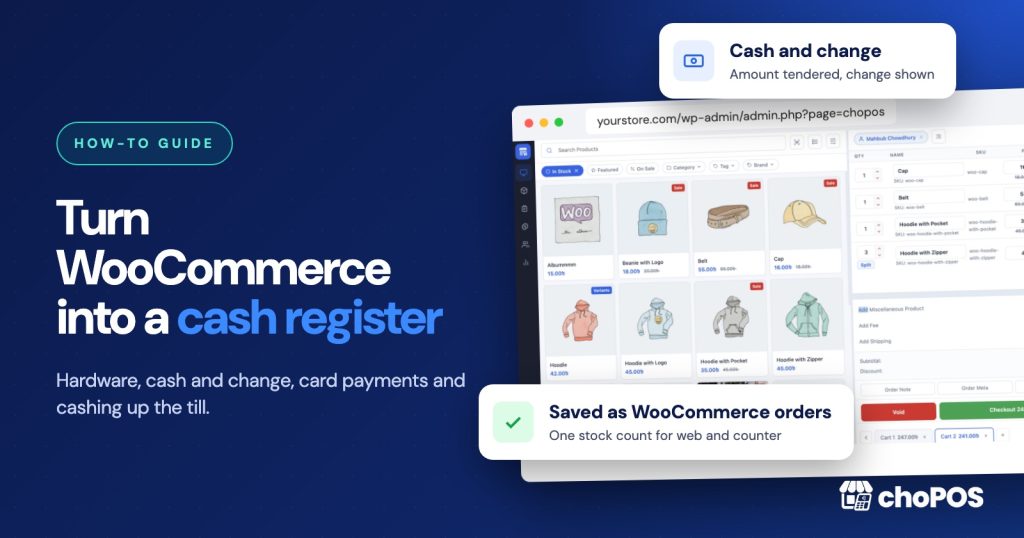
A WooCommerce cash register is a till screen that sells your WooCommerce products at a counter and saves each sale as a normal WooCommerce order. You can get one from WooCommerce’s own Point of Sale mode, from a POS plugin that runs in the browser, or from a separate register that syncs with your store. Add a receipt printer, a cash drawer and a scanner, and agree how the till is counted at the end of each day.
This guide is for shop owners who already sell online with WooCommerce and now need to take cash and card payments in person. It covers the three ways to get a register, the hardware, taking cash and giving change, and cashing up. If you are still choosing a system, our WooCommerce POS setup guide walks through the wider decision.
What a WooCommerce cash register has to do
Whatever you choose, a register at the counter needs to handle the same daily jobs:
- Ring up products from your WooCommerce catalogue by search, tap or barcode scan, including variations such as size and colour.
- Take cash and work out change so the cashier does not do the sums in their head.
- Record card payments, whether the card reader is connected to the till or works on its own.
- Print or email a receipt and, on a cash sale, open the drawer.
- Reduce stock in the same place your website reads it, so the online shop does not sell what has just left the counter.
- Handle refunds and returns, and put stock back when the item can be resold.
- Total up the day by payment method so you can count the drawer against it.
Three ways to put a cash register on WooCommerce
1. WooCommerce Point of Sale mode in the Woo mobile app
WooCommerce offers a Point of Sale mode inside its mobile app for supported tablets. It takes cash, and it takes cards through WooPayments or Stripe with a WooCommerce card reader or Tap to Pay. At the time of writing its documentation lists ten supported countries and supports only simple and variable products. We compare it in detail in Official WooCommerce POS vs choPOS.
2. A POS plugin that runs in the browser
A POS plugin adds a till screen to your WordPress site. Staff open it in a browser on a laptop, desktop or tablet and sign in with their own account. choPOS works this way, and so do several others in our roundup of WooCommerce POS plugins. Because the plugin writes straight to WooCommerce, there is no separate product list or stock count to keep in sync. You choose your own printer, drawer and card reader.
3. A separate register synced with WooCommerce
Some shops keep a hosted system such as Square at the counter and connect it to WooCommerce with an integration. This suits a shop that already has the hardware and is happy with that provider’s card fees. The trade-off is two systems: counter sales and reports live in one, online sales in the other, and stock depends on the sync running correctly.
| Woo mobile app POS mode | Browser POS plugin | Separate synced register | |
|---|---|---|---|
| Where sales are saved | WooCommerce | WooCommerce | The register first, then synced |
| Device | Supported tablet | Any device with a modern browser | The provider’s hardware or app |
| Card payments | WooPayments or Stripe readers | Any WooCommerce gateway, or a standalone terminal | The provider’s readers |
| Countries | Supported countries only | Wherever WooCommerce runs | The provider’s countries |
| Stock | Shared with the website | Shared with the website | Depends on the sync |
The hardware for a WooCommerce till
A browser-based register runs on hardware you may already own. A typical counter has:
- A device for the till screen. A laptop, desktop or tablet with a current Chrome, Edge, Firefox or Safari browser.
- A receipt printer. An 80 mm thermal printer is the usual choice; 58 mm printers suit small counters and market stalls.
- A cash drawer. Most drawers plug into the receipt printer with an RJ11 cable and open when the printer receives a print job. The kick is set in the printer driver, not in the POS.
- A barcode scanner. USB and Bluetooth scanners that type the code like a keyboard work with almost any till screen.
- A card reader. Either one that is integrated with your payment gateway or a standalone terminal from your bank or a provider such as SumUp.
Our receipt printer and barcode scanner setup guide covers driver settings, paper width and how to make the drawer open on print.
Taking a cash sale with choPOS
Here is how a cash sale works in choPOS, the plugin we make. The steps are similar in most browser POS plugins.
- Scan the items or tap them in the product grid. Change quantities or prices in the cart if needed.
- Choose Cash at checkout and enter the amount the customer hands over.
- choPOS shows the change to give back. Complete the sale.
- The sale is saved as a WooCommerce order and the stock is reduced in the same database the website reads.
- The receipt prints, or you email it or download a PDF. If the drawer is connected to the printer, it opens with the receipt.
Some customers pay part now and the rest later, for example on a deposit or a special order. choPOS records a part payment and keeps the balance due on the same order. We explain the options in our guide to WooCommerce POS split payments and deposits.
Card payments at the counter
There are two common set-ups. In the first, the card reader is connected to a WooCommerce payment gateway, so the till sends the amount to the reader. In the second, the cashier types the amount into a standalone terminal, takes the payment there, then records the sale in the POS as paid by card. choPOS has a built-in Card method for that second case and can also use any WooCommerce gateway you have enabled.
With a standalone terminal, the POS cannot check that the card payment went through, so compare the terminal’s daily report with the card total in your POS reports when you cash up.
Opening and closing the till each day
A cash register is only as good as the count at the end of the day. Agree a routine before the first shift and write it down.
Opening
- Count the opening float, the cash left in the drawer for change, and write it on a cash-up sheet with the date and the cashier’s name.
- Check that the receipt printer has paper and that a test print opens the drawer.
- Sign in to the till with the cashier’s own account, not a shared login.
Closing
- Open your POS reports for today’s date and note the cash total and the card total. In choPOS, the Reports screen breaks sales down by payment method for any date range.
- Work out the expected cash: opening float, plus cash sales, minus any cash refunds.
- Count the drawer and record the difference. Small differences happen; repeated ones point to change errors or sales that were not rung up.
- Compare the card total with the card terminal’s end-of-day report.
- Take the takings above the float out of the drawer and store them safely.
choPOS Free does not have a float or shift cash-up screen in the terminal, so keep the opening float and the count on a paper or spreadsheet cash-up sheet. The sales and payment totals come from the Reports screen.
Refunds, voids and parked sales
Returns are where tills and stock most often fall out of step. In choPOS, refunds are made from the Orders screen against the original order, with the option to put the stock back. Pay a cash refund from the drawer and it reduces the expected cash at closing. A sale that was rung up by mistake can be voided instead of refunded.
When a customer steps away to fetch another item, park the cart rather than starting again. choPOS keeps several carts open at once and saves unpaid ones as POS open orders, so a parked sale can be finished later.
Staff accounts and permissions
Give each cashier their own WordPress account. Orders then show who made each sale, and you can remove one person’s access without changing everyone’s password. In choPOS, cashiers work with the orders and held carts they created, while store managers can see and change every order and the settings.
What a browser-based register cannot do
- Work without the internet. choPOS needs a connection to your WordPress site to load products and save orders. If your counter Wi-Fi is unreliable, keep a mobile hotspot ready.
- Open the drawer on its own. The drawer opens through the receipt printer. Without a printer, use a drawer with a key or a manual release.
- Control a standalone card terminal. The amount is typed into the terminal separately and the sale is recorded in the POS.
If the website and the counter share stock, test the last item of a product on two devices before you go live. Our guide to stopping overselling has a test worksheet.
Checklist before your first day
- Products have SKUs or barcodes, and prices include or exclude tax the way you want them shown.
- A test cash sale prints a receipt, opens the drawer and reduces stock.
- A test card sale matches the terminal or gateway record.
- A test refund puts stock back and shows in the day’s report.
- Every cashier can sign in with their own account.
- The cash-up sheet and the opening float are ready.
Frequently asked questions
Can WooCommerce be used as a cash register?
Yes. WooCommerce has no till screen in wp-admin, but its Point of Sale mode in the Woo mobile app or a POS plugin such as choPOS adds one. Each counter sale is saved as a WooCommerce order and reduces the same stock as the website.
Do I need special hardware?
No. A laptop, desktop or tablet with a modern browser runs a browser-based till. A thermal receipt printer, a cash drawer that connects to the printer and a USB or Bluetooth barcode scanner are optional but make the counter faster.
How do I open the cash drawer from WooCommerce?
Connect the drawer to the receipt printer and set the printer driver to open the drawer when it prints. The drawer then opens with each receipt.
Is there a free WooCommerce cash register?
choPOS Free is a complete point of sale for one store, with cash and change, part payments, receipts, refunds and reports. WooCommerce’s own Point of Sale mode is free software too, with fees on card payments and readers.
To try it on your own store, download choPOS Free from WordPress.org and run the test sales above before your first real customer.