
Install and activate choPOS Pro
Upload the add-on, enter your licence key, and get updates in WordPress.
To activate choPOS Pro, upload the choPOS Pro plugin zip in Plugins → Add New → Upload Plugin, activate it, then go to choPOS → License, paste the licence key from your purchase email (it starts with SPOS-) and click Activate. Pro features switch on straight away, and updates arrive in Dashboard → Updates.
What you need
- WooCommerce and choPOS Free, installed and active. WordPress will not activate Pro without them.
- Your choPOS Pro zip file and licence key. Both are in your purchase email, on the thank-you page and in your choPOS account.
No licence yet? Compare Pro plans, with yearly or one-time lifetime licences, or see what Pro adds to Free.
Install choPOS Pro
- Go to Plugins → Add New → Upload Plugin.
- Choose the
chopos-pro.zipfile and click Install Now. - Click Activate Plugin.
Until the licence is active, choPOS runs with its free features and shows a reminder to activate it.
Activate your licence
- Go to choPOS → License, or click License under choPOS Pro on the Plugins screen.
- Paste your key into the field (format
SPOS-XXXX-XXXX-XXXX-XXXX). - Click Activate.
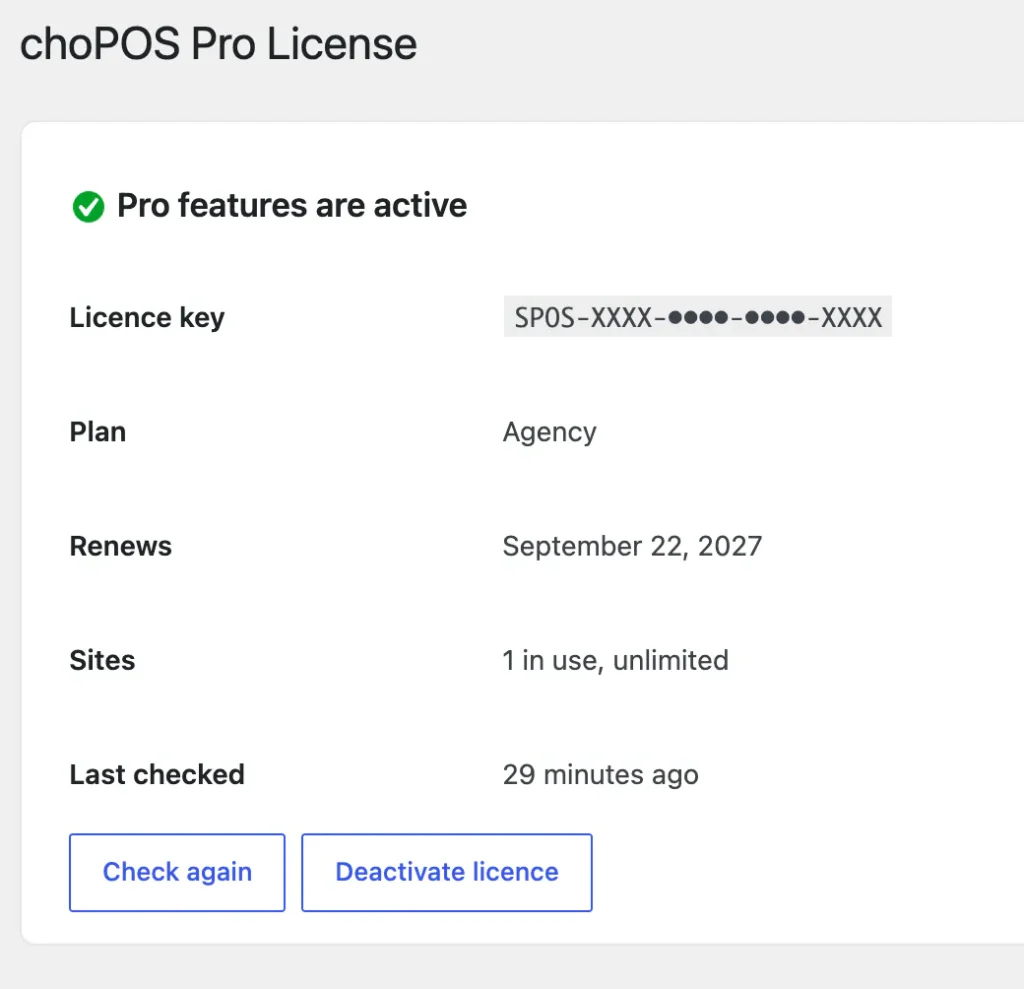
The page changes to “Pro features are active” and shows the masked key, your plan, the renewal or expiry date (or Lifetime), and how many sites are using it. The Stores, Barcodes, Purchases and Vendors menus appear.
Updates
While the licence is active, new versions of choPOS Pro appear in Dashboard → Updates and on the Plugins screen, like any other plugin. You can update with one click or turn on auto-updates. View details shows the release notes.
The licence is checked once a day. If our licence server cannot be reached, Pro keeps working. Click Check again on the License page to refresh it straight away.
Move a licence to another site
- On the old site, go to choPOS → License and click Deactivate licence. Pro switches off there and the site’s slot is freed.
- On the new site, install choPOS Pro and activate the same key.
If the old site is gone, remove it from your choPOS account with Manage licences. Deactivating the plugin on the Plugins screen does not free the slot; deleting the plugin does.
If Pro switches off
| Message | What to do |
|---|---|
| This site’s address has changed since the licence was activated. | The site moved to a new domain or was cloned. Click Activate again on the new address. |
| This licence has expired. | Renew in your choPOS account, then click Activate. Pro features stay on for 3 days after the expiry date. |
| Could not reach the licence server | Check that your site can make outgoing HTTPS requests, then try again. |
Changing from http to https, or adding or removing www, does not affect the licence.
Next: set up your stores.