
Checkout and payment methods
Cash with change, card on your own terminal, part payments and WooCommerce payment methods.
At checkout, choPOS offers Cash, Card and every payment method enabled in WooCommerce. For cash it works out the change. choPOS does not charge cards itself: take the card on your own terminal and choose Card to record it. Enter less than the total to take a partial payment and leave a balance due.
Open checkout
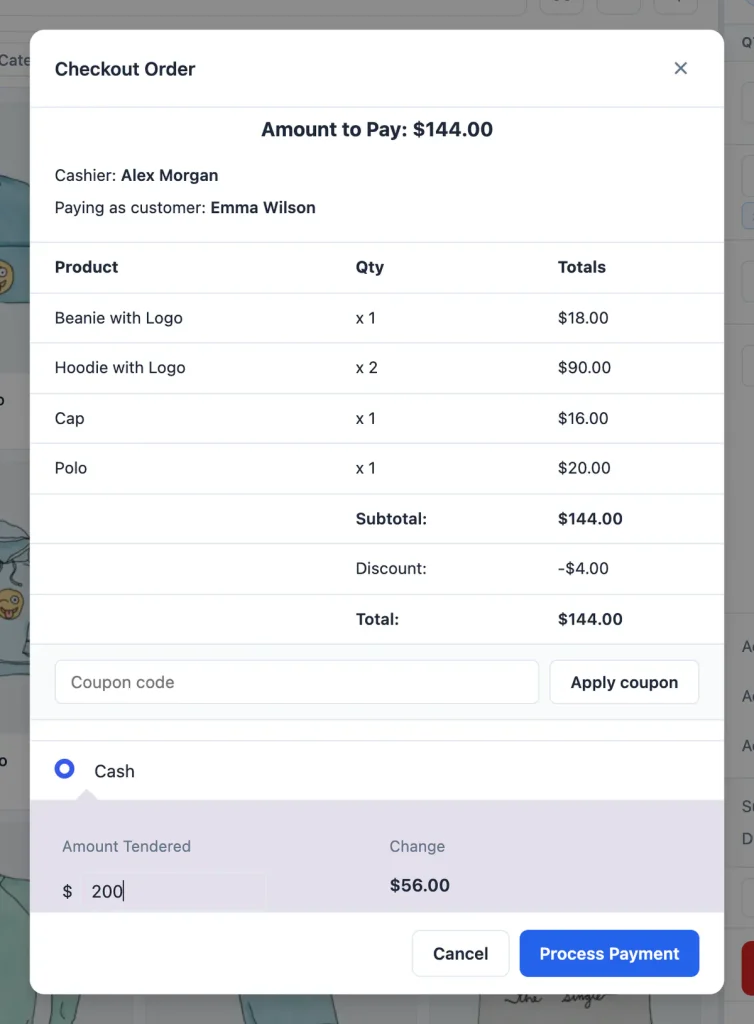
With products in the cart, click the green Checkout button. The Checkout Order window shows the Amount to Pay, the cashier and customer, every item and the totals.
Payment methods
| Method | Use it for |
|---|---|
| Cash | Cash at the counter. Selected by default. Shows Amount Tendered and Change. |
| Card | A card taken on your own card terminal, from any provider in any country. |
| Your WooCommerce payment methods | Every gateway enabled under WooCommerce → Settings → Payments, such as bank transfer, cheque or cash on delivery. choPOS records the method on the order. |
choPOS records how the customer paid; it never sends a card payment to a gateway. Choosing a gateway such as Stripe records that method on the order without charging the customer through it.
Take a cash payment
- Leave Cash selected.
- Type the amount the customer hands you in Amount Tendered.
- choPOS shows the Change to give back.
- Click Process Payment.
The order is saved as Completed, with the cash tendered and change recorded on it.
Take a card payment
- Charge the card on your card terminal.
- When it is approved, choose Card in choPOS.
- Click Process Payment.
Take a partial payment or deposit
For layaways, deposits and special orders:
- Choose Cash and enter the amount the customer is paying now, less than the total.
- choPOS shows the Balance Due and the button changes to Take Partial Payment.
- Click it. The order is saved as POS – Partial Payment with the amount paid and the amount due, and stock is reduced.
When the customer pays the rest, a manager finds the order on the Orders screen, chooses Edit from its menu and sets Status to Completed (or does the same in WooCommerce → Orders). choPOS adds the note “Remaining balance of … collected.” For more ways to handle deposits, read our guide to WooCommerce POS partial payments.
Apply a coupon
Type a WooCommerce coupon code in Coupon code and click Apply coupon. choPOS checks the code and shows “Coupon … is valid.” or the reason it cannot be used. The coupon is added to the order when you process the payment, and WooCommerce works out the discount on the saved order and receipt. One coupon can be used per sale. Create codes on the Coupons screen.
After payment
The cart clears, ready for the next customer. By default the receipt preview opens so you can print or email it. To print straight away, or to skip the preview, change After Checkout in Receipts and printing.
Every sale is a standard WooCommerce order with “Created via” set to POS, the cashier and, with choPOS Pro, the store. Find it on the Orders screen.