
Tax setup for choPOS
Use your WooCommerce tax rates at the till, taxed at the shop or the customer's address.
choPOS calculates tax with your WooCommerce tax rates and classes. In Settings → Tax you choose whether to tax at the shop address or the customer’s billing or shipping address, whether prices include tax, and how tax is shown. When the order is saved, WooCommerce taxes it with the same settings the till showed.
Before you start
- Set up your tax rates in WooCommerce → Settings → Tax. choPOS uses those rates; it does not have its own rate table.
- Open the terminal and go to Settings → General. Check the Store Base Country, State, City and Postcode. These are the shop address used for tax.
- Go to Settings → Tax and set the options below.
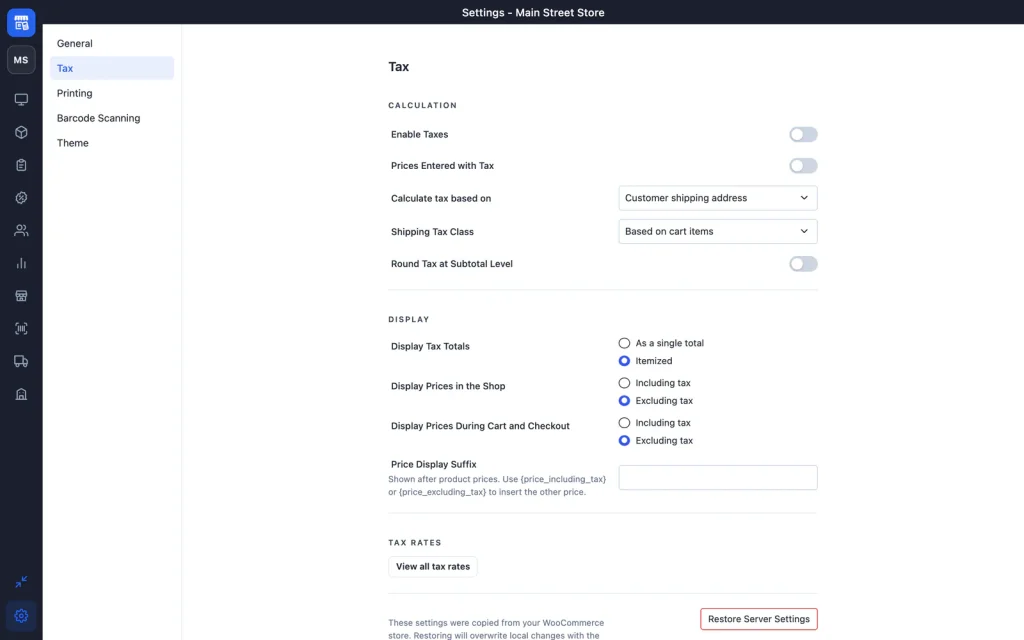
Tax calculation settings
| Setting | Options |
|---|---|
| Enable Taxes | Starts with your WooCommerce setting. |
| Prices Entered with Tax | On if your product prices already include tax, as with VAT or GST pricing. |
| Calculate tax based on | Customer shipping address, Customer billing address, or Shop base address. |
| Shipping Tax Class | Based on cart items, or a fixed tax class. |
| Round Tax at Subtotal Level | Round tax once for the order instead of per line. |
When tax is based on the shipping address and the customer has none, choPOS uses their billing address. A Guest sale, or a customer with no address, is taxed at the shop base address.
For walk-in sales, Shop base address is the usual choice, because the customer buys at your counter. Check your local rules.
Tax display settings
- Display Tax Totals: Itemized (one line per tax) or As a single total.
- Display Prices in the Shop: including or excluding tax, used on product tiles.
- Display Prices During Cart and Checkout: including or excluding tax, used in the cart.
- Price Display Suffix: text after prices, such as “incl. VAT”. You can use
{price_including_tax}and{price_excluding_tax}.
Tax classes on items, fees and shipping
Each product uses its WooCommerce tax class and tax status. Fees and shipping you add in the cart have their own Tax Class and Tax Status options; see Carts and discounts.
Check your tax rates
Under Tax Rates, click View all tax rates to see every WooCommerce rate by class, with country, state, postcode, city, rate, name, priority, compound and shipping columns. Use the refresh button after changing rates in WooCommerce.
Keep the till in sync with WooCommerce
Tax settings are copied from WooCommerce the first time the terminal opens on a device and then saved on that device. If you change tax settings in WooCommerce later, click Restore Server Settings on the Tax screen of each till. More in Terminal settings.