
Print barcode labels with choPOS Pro
Label sheets or label rolls, one click barcodes for products that have none, and a live preview.
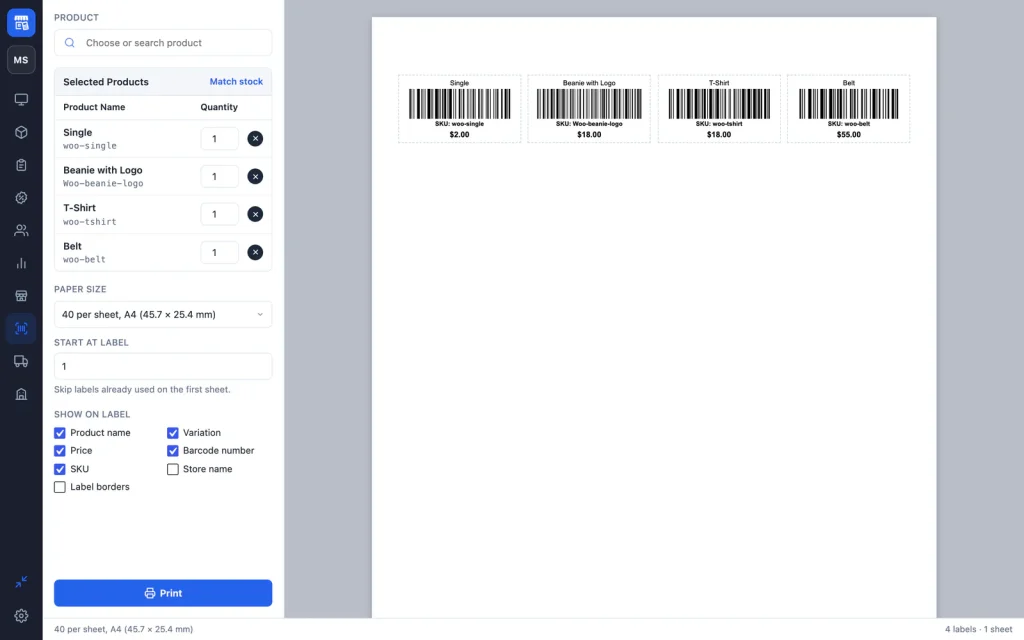
choPOS Pro prints Code 128 barcode labels for your WooCommerce products. Add products, set how many labels each needs, choose an A4 or Letter label sheet or a label printer roll, pick what each label shows, and click Print. Products without a barcode or SKU get a unique in-store code with one click.
Open the label printer
Click Barcodes in the POS sidebar, or go to choPOS → Barcodes. It is available to managers.
Print labels
- In Product, search by name or SKU, or scan a barcode, and choose a product. Variations are listed separately.
- Set the Quantity of labels for each product. Match stock sets each quantity to the number in stock.
- Choose the Paper Size (see the table below).
- On a sheet that is already partly used, set Start at label to the first empty label.
- Under Show on Label, tick what to print.
- Check the live preview, then click Print and choose your printer.
In the print dialog, keep the scale at 100% (no “fit to page”) and margins at none, so labels line up with the sheet.
Paper sizes
| Label sheets | Label printer rolls |
|---|---|
| 40 per sheet, A4 (45.7 × 25.4 mm) | Label roll, 50 × 25 mm |
| 65 per sheet, A4 (38.1 × 21.2 mm) | Label roll, 40 × 30 mm |
| 24 per sheet, A4 (63.5 × 33.9 mm) | Label roll, 38 × 25 mm |
| 21 per sheet, A4 (63.5 × 38.1 mm) | Label roll, 57.2 × 31.8 mm |
| 30 per sheet, Letter (66.7 × 25.4 mm) | Label roll, custom size (10 to 200 mm) |
| 80 per sheet, Letter (44.5 × 12.7 mm) |
Sheet layouts match common Avery-style label sheets. Rolls print one label per page.
What a label can show
Tick any of Product name, Variation, Price, Barcode number, SKU, Store name and Label borders. The price is the current WooCommerce price, including any sale price. Your choices are remembered on the device.
Create barcodes for products that have none
If a product has neither a barcode nor its own SKU, choPOS warns that it has no label yet. Click Create barcodes and confirm. choPOS Pro gives each product a unique 13-digit code starting with 2, the range reserved for in-store use, and saves it to the product’s Barcode field. Existing barcodes are never replaced.
The new codes scan at the till straight away; see Barcode scanning.
Print labels for new stock
After receiving a purchase, click Print Labels on it to open this screen with its products and quantities filled in. See Purchases and vendors.