
Create and manage coupons in choPOS
Percentage and fixed discounts, expiry dates, usage limits and spend rules.
The choPOS Coupons screen creates and edits standard WooCommerce coupons from the POS. Choose a percentage or fixed discount, an expiry, one-time use, minimum or maximum spend and usage limits. The same codes work at the till and in your online shop.
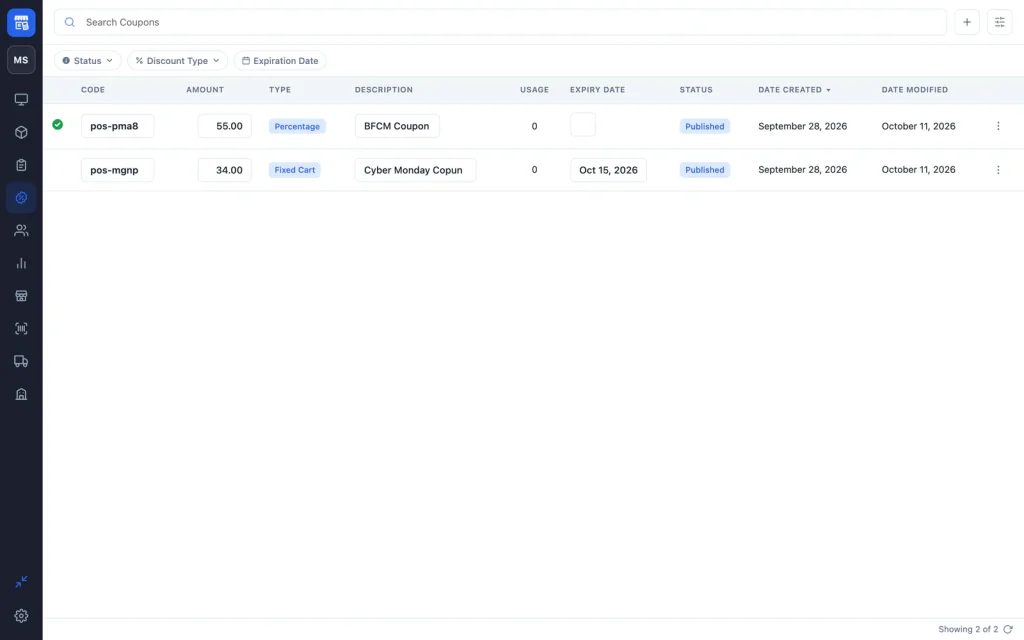
Find and edit coupons
Click Coupons in the sidebar (managers only). Search by code, or filter by Status, Discount Type or Expiration Date. You can edit the code, amount, description and expiry date inline. Deleted coupons go to the trash, where you can Restore them or Delete Permanently.
Create a coupon
- Click Add Coupon (+).
- Type a Code, or click Generate for a random one. Codes are saved in lowercase and are not case-sensitive.
- Choose the Discount: Percentage, Amount off order or Amount off products, and enter the amount.
- Choose when it Expires: Never, End of Day, 1 Week, 1 Month, or Pick a Date.
- Optional: turn on One-time use, and open Restrictions and Usage limits for more rules.
- Click Save.
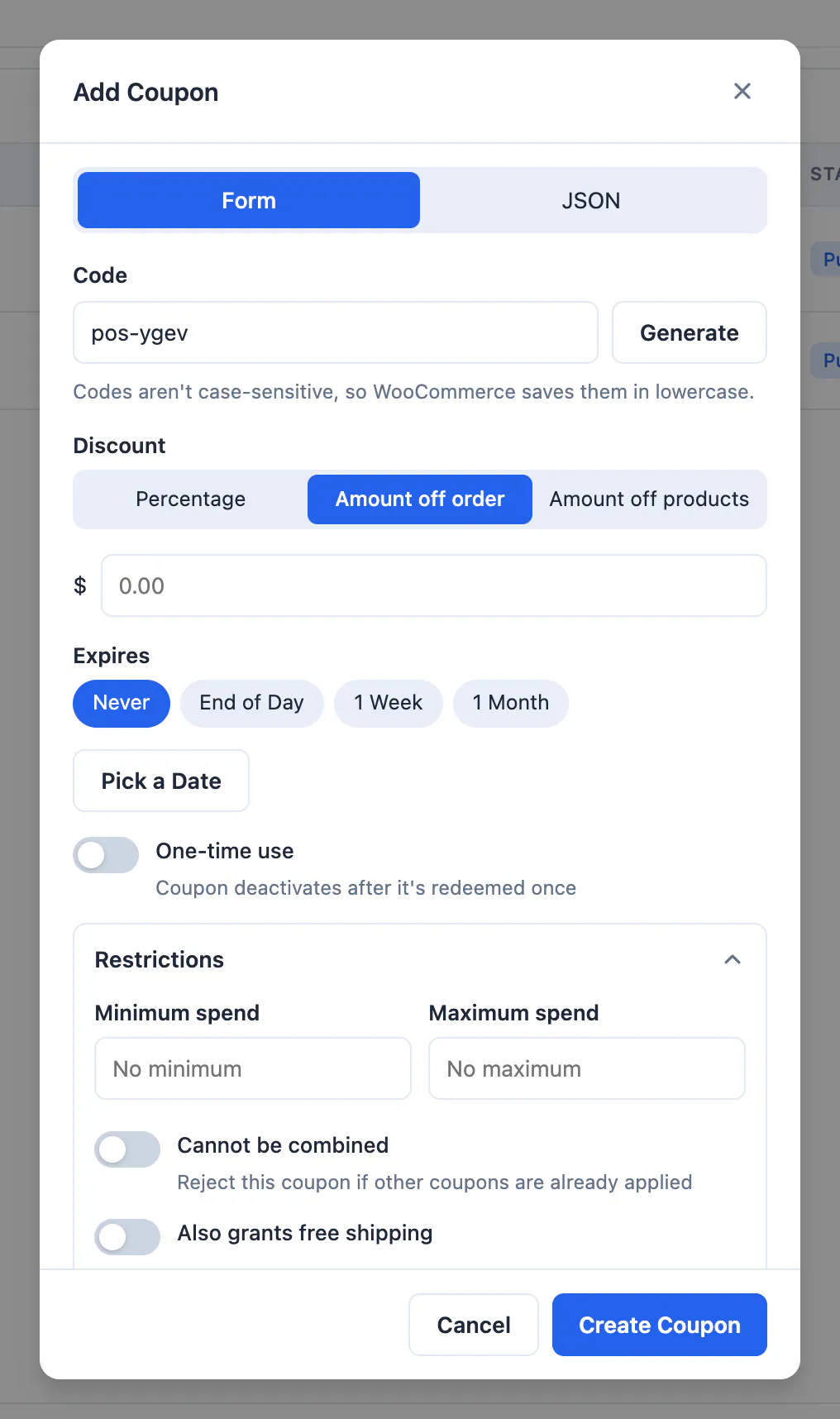
Restrictions and limits
| Option | What it does |
|---|---|
| Minimum spend / Maximum spend | Only accept the coupon when the order total is in this range. |
| Cannot be combined | Reject the coupon if other coupons are already applied. |
| Also grants free shipping | Lets the coupon unlock free shipping methods in your online checkout. |
| Total uses / Uses per customer | Cap how many times the coupon can be redeemed. |
| Internal note | A description only your staff see. |
For product, category or email restrictions, edit the coupon in WooCommerce → Marketing → Coupons.
To redeem a coupon, enter it at checkout.