
Print, email and download receipts
Thermal and A4 templates, printing through the browser, PDF and email.
choPOS prints receipts through the browser, so any printer the till device can use will work, including 80 mm and 58 mm thermal receipt printers and A4 printers. From the receipt preview you can print, email the receipt to the customer or download a PDF. Templates include a detailed receipt, gift receipt, packing slip and kitchen ticket.
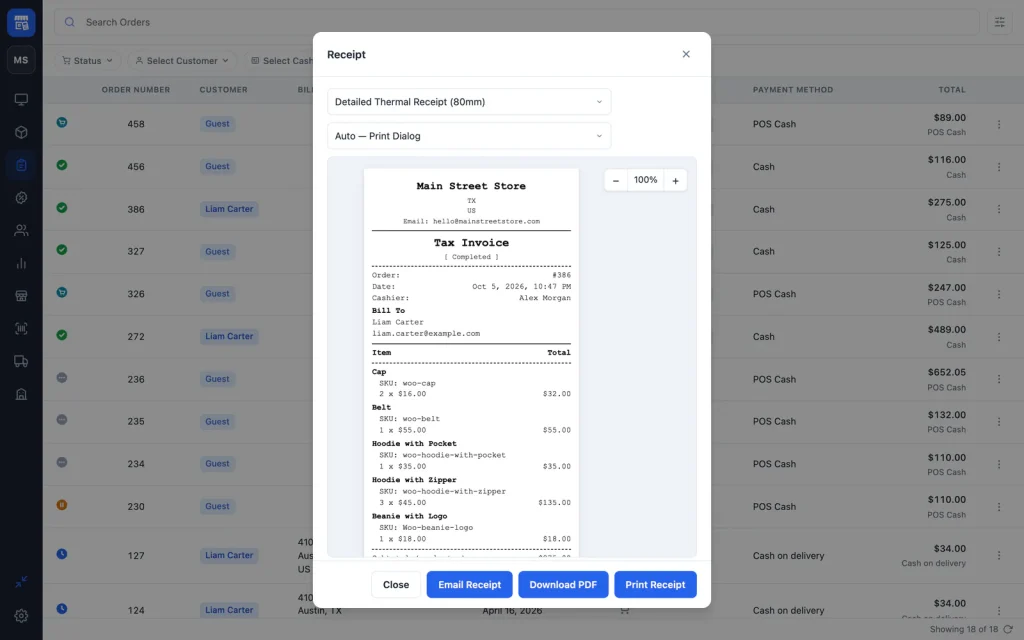
Open a receipt
The receipt preview opens after checkout by default. For any earlier sale, go to Orders, open the order’s menu and choose Receipt, or open the order and click Print Receipt.
Receipt templates
| Template | Paper | Use it for |
|---|---|---|
| Detailed Thermal Receipt (80mm) | 80 mm roll | The default till receipt, with an order barcode. |
| Narrow Receipt (58mm) | 58 mm roll | Small portable printers. |
| Detailed Receipt | A4 | A full-page invoice. |
| Gift Receipt | A4 | Items without prices, with a returns note. |
| Packing Slip | A4 | Ship-to and bill-to addresses, packed by and signature lines. |
| Kitchen Ticket | 80 mm roll | Items and notes without prices, for cafes and kitchens. |
| Legacy PHP Template | A4 | A theme-overridable template for developers. |
Receipts show your site logo, the store name and address, the cashier, every item, taxes and totals. With choPOS Pro multiple stores, each receipt shows the address, phone and opening hours of the store that made the sale.
Print a receipt
- Choose the template in the first menu of the preview.
- Click Print Receipt. The browser’s print dialog opens.
- Choose your receipt printer.
For thermal printers, set the paper size in the print dialog to your roll width (80 mm or 58 mm) and turn margins off, or the receipt prints small. Most browsers remember this for next time.
Setting up a printer for the first time? Our receipt printer and barcode scanner setup guide covers drivers, paper sizes and testing.
Email a receipt
- Click Email Receipt.
- Enter the customer’s Email Address. Turn on Save email to Billing Address to keep it on the order.
- Click Send.
The email is sent by your WordPress site with the subject “Receipt for Order #…”. If emails do not arrive, see FAQ and troubleshooting.
Download a PDF
Click Download PDF to save the receipt as a PDF in the chosen template. Use it to send by messaging apps or to keep a copy.
Printing settings
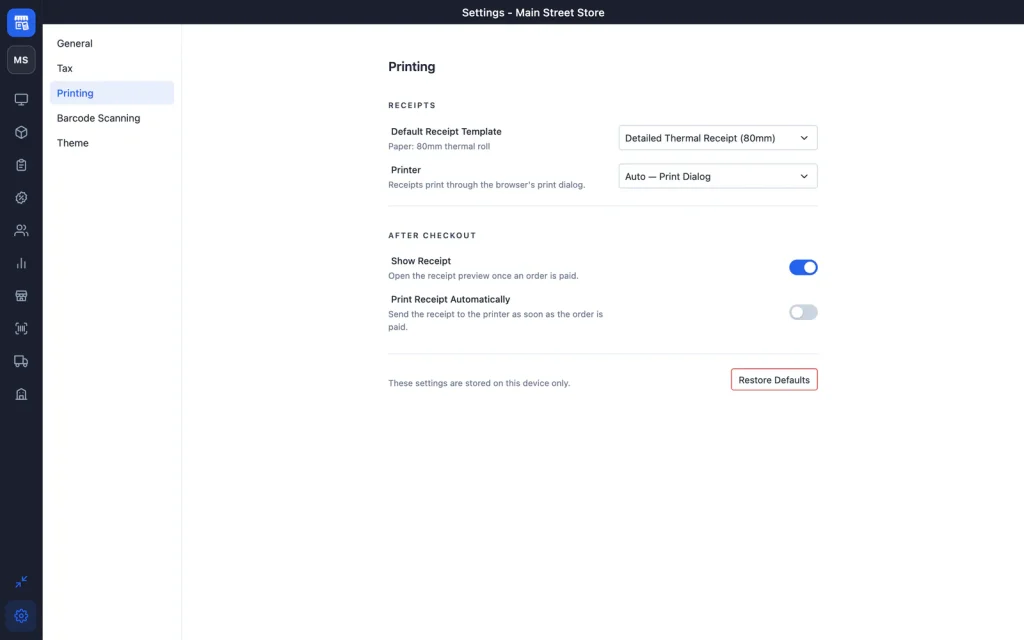
Open Settings → Printing to set the defaults for this device:
| Setting | What it does | Default |
|---|---|---|
| Default Receipt Template | The template the preview opens with. | Detailed Thermal Receipt (80mm) |
| Printer | Receipts print through the browser’s print dialog. | Auto |
| Show Receipt | Open the receipt preview once an order is paid. | On |
| Print Receipt Automatically | Send the receipt to the printer as soon as the order is paid. | Off |