
Purchase orders and vendors in choPOS Pro
Buy in stock from suppliers, update cost prices and track what you owe each vendor.
choPOS Pro records the stock you buy from suppliers. Add vendors, create a purchase with products, quantities and unit costs, and mark it Received to add the stock to a store. choPOS Pro can update each product’s cost price, records payments to the vendor, and shows how much you owe. Purchases print as a purchase order or goods received note.
Add a vendor
- Click Vendors in the POS sidebar, or choPOS → Vendors.
- Click Add Vendor.
- Enter the Contact name (required) and optionally the company, phone, email, tax or VAT number, address and notes.
- Click Save Vendor.
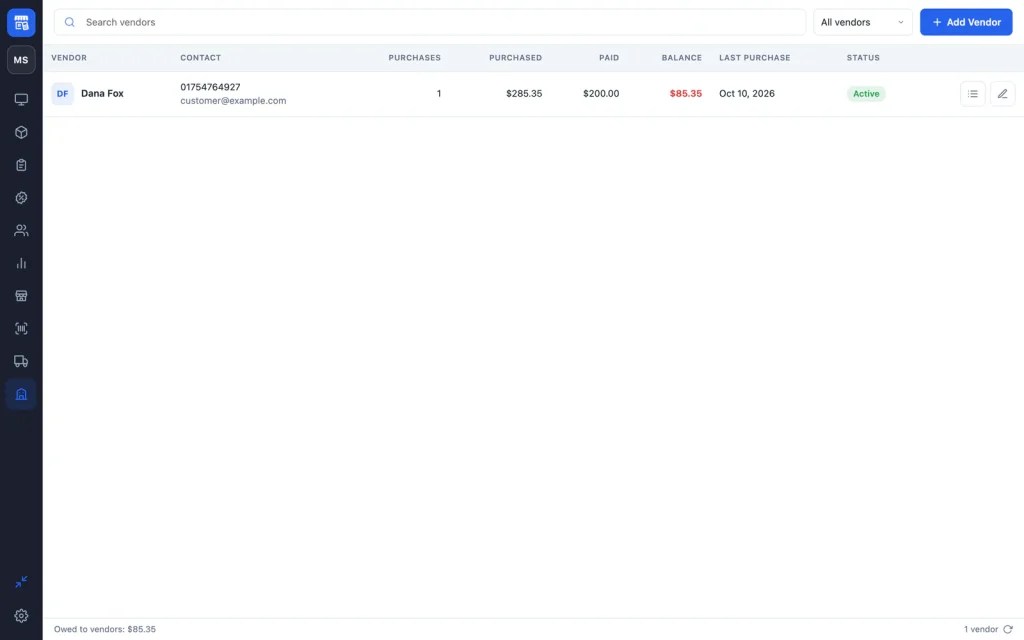
The vendor list shows each vendor’s purchases, amount purchased, amount paid and Balance owed. Vendors with purchases cannot be deleted; set them to Inactive instead.
Record a purchase
- Click Purchases, then Add Purchase.
- Choose the Vendor (or click + to add one), the Store receiving the goods, the Purchase date and the Supplier invoice no.
- Choose Received if the goods are here and should be added to the store’s stock now, or Ordered if they have not arrived yet.
- Search or scan products to add them. Enter the Quantity and Unit cost for each; the unit cost starts at the product’s current cost price.
- Optional: add a discount (amount or %), a tax %, shipping and a note.
- Leave Set the products’ cost price to these unit costs when received ticked to update cost prices.
- If you paid now, enter it under Payment to vendor, or click Pay in full.
- Click Save and Add Stock (Received) or Save Order (Ordered).
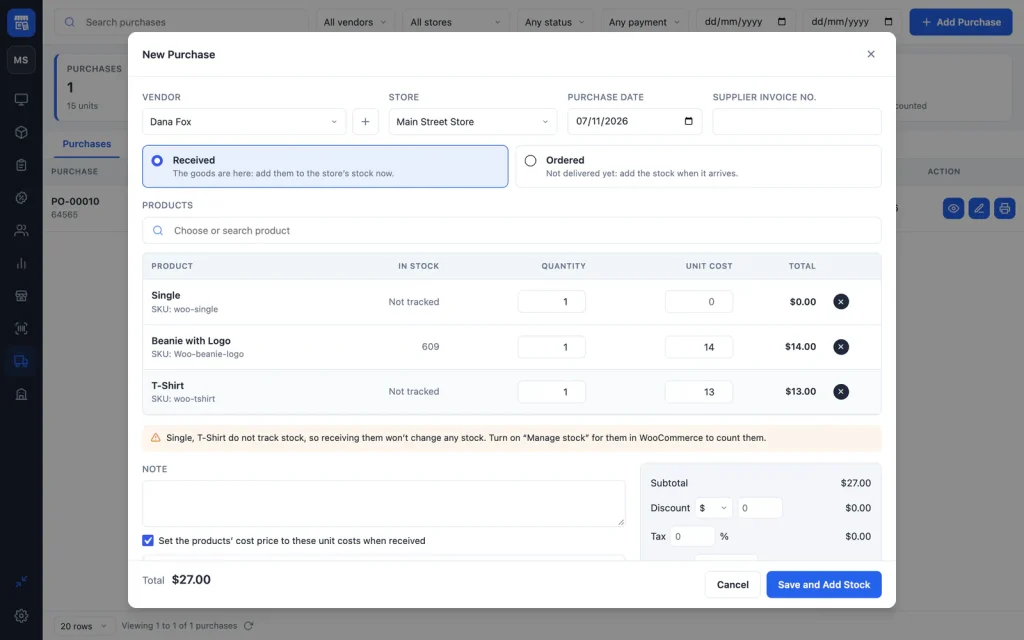
Products with stock tracking turned off are listed as “Not tracked” and receiving them does not change stock. Turn on Manage stock for them in WooCommerce to count them.
Receive an ordered purchase
When an ordered delivery arrives, open the purchase and click Mark Received. The whole purchase is received at once and its stock is added to the store.
Pay a vendor
Open the purchase and click Record Payment. Enter the Amount (it starts at the amount due), the Method (Cash, Bank transfer, Card, Cheque, Mobile payment or Other), the Date and a Reference, then click Save Payment. The purchase shows Paid, Partly paid or Unpaid, and the vendor’s balance updates.
Edit, cancel or delete a purchase
- Edit a purchase to correct it; choPOS adjusts the stock it added.
- Cancel Purchase takes its stock back out. Payments stay on record as a credit with the vendor.
- Delete takes its stock back out and deletes its payments.
Print documents and labels
Click Print on a purchase for an A4 document: a Purchase Order while ordered, or a Goods Received Note once received, with vendor and delivery details, items, payments, totals and signature lines. Click Print Labels to print barcode labels for everything on it.
Purchase totals
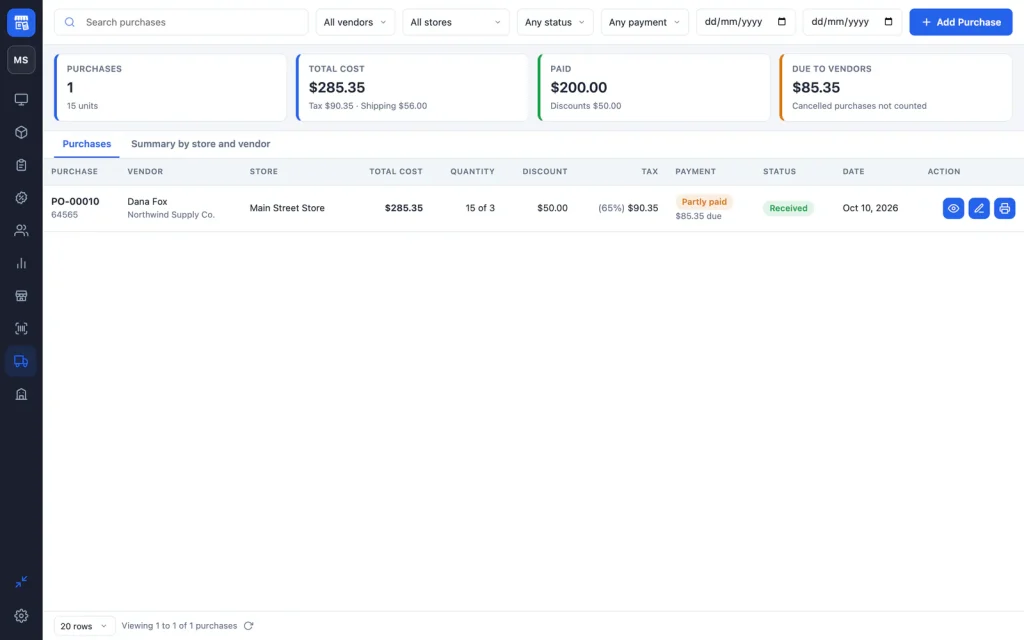
The cards at the top of Purchases show the number of purchases and units, total cost with tax and shipping, the amount paid and the amount due to vendors, for the filters you set. The Summary by store and vendor tab breaks the totals down by store and lists your top vendors.