
choPOS terminal settings
Store address, currency, tax, printing, scanning and appearance for each till.
choPOS settings live in the terminal under the gear icon. They cover the store base address and currency format (General), tax rules (Tax), receipts (Printing), the scanner (Barcode Scanning) and colours (Theme). Settings are saved on each device, and General and Tax start as a copy of your WooCommerce settings.
Open Settings
Click the gear at the bottom of the sidebar, or go to choPOS → Settings in WordPress. Settings are for managers.
Settings are saved per device
Each browser keeps its own copy of the terminal settings. That lets every till have its own printer template or scanner timing. It also means a change on one till does not reach the others; make it on each device.
On General and Tax, Restore Server Settings copies your current WooCommerce settings back over the device’s copy. On the other screens, Restore Defaults resets that screen.
General
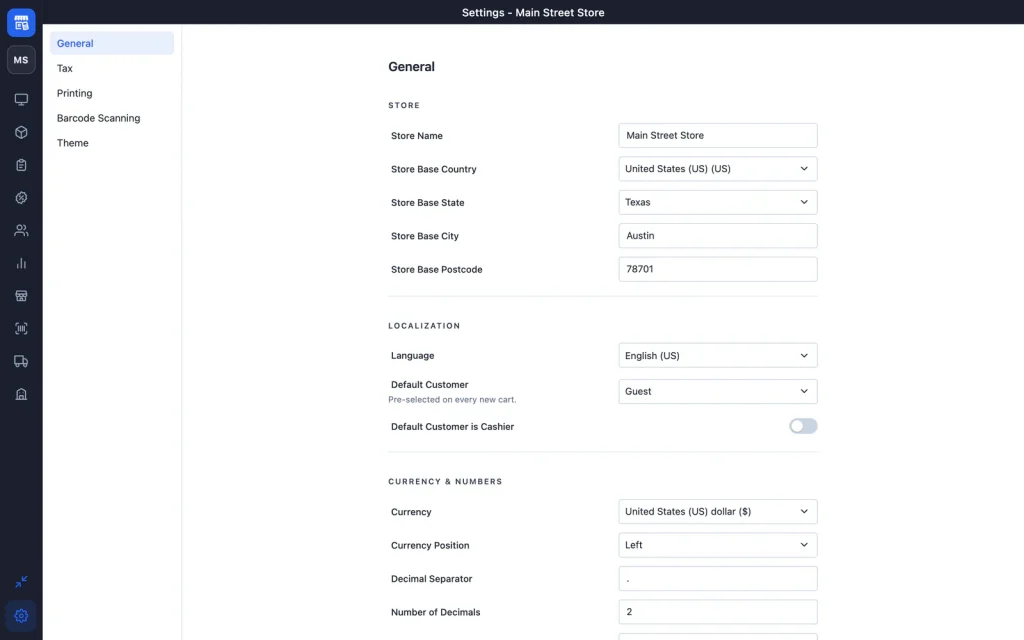
| Setting | What it does |
|---|---|
| Store Name | Shown in the settings title bar. |
| Store Base Country, State, City, Postcode | The shop address used for tax. |
| Default Customer | Pre-selected on every new cart. Guest by default. |
| Default Customer is Cashier | Put sales on the signed-in cashier’s own account. |
| Currency | The currency of new POS orders. |
| Currency Position | Left, Right, Left with space or Right with space. |
| Decimal Separator, Number of Decimals, Thousand Separator | How prices are written. |
| Thousands Group Style | 123,456,789 or 12,34,56,789 (lakh) or 1,2345,6789 (wan). |
Tax
Whether taxes are on, how prices are entered, whose address is taxed and how tax is displayed. See the full tax setup guide.
Printing
The default receipt template and whether the receipt is shown or printed after checkout. See Receipts and printing.
Barcode Scanning
Turn the hardware scanner on or off, set its timing, minimum length, prefix and suffix, and test it. See Barcode scanning.
Theme
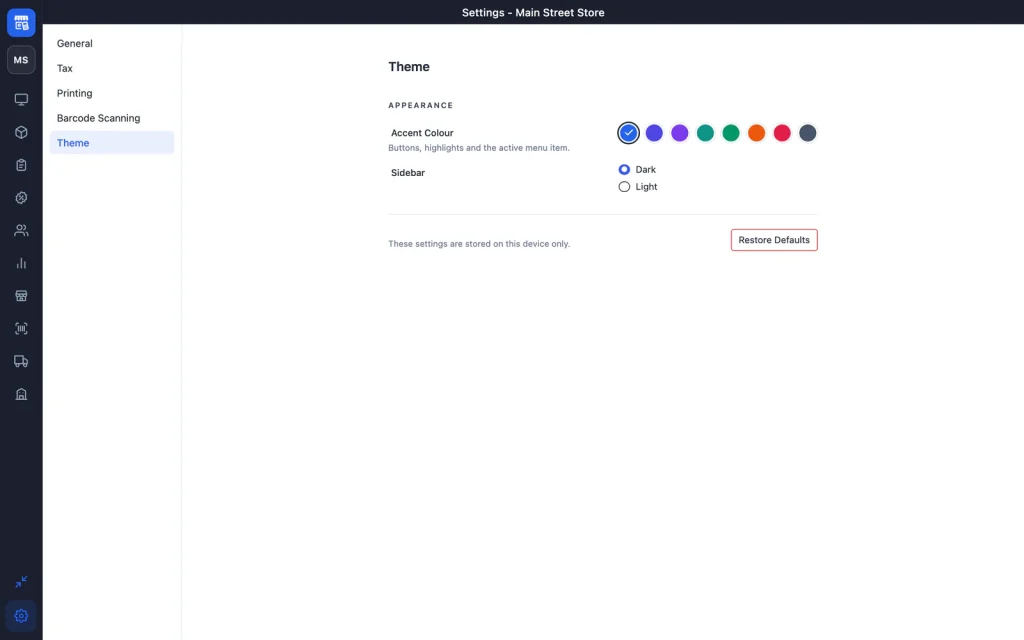
Choose an Accent Colour (Blue, Indigo, Violet, Teal, Emerald, Orange, Rose or Slate) and a Dark or Light sidebar. Giving each till its own colour helps staff spot which one they are on.
Screen and column preferences
The Products, Cart, Orders, Coupons, Customers and Reports screens each have their own settings button for columns and display options. Those choices are saved on the device too.