
Run multiple stores with choPOS Pro
One WooCommerce site, several shops, each with its own stock, staff, orders and reports.
choPOS Pro lets one WooCommerce site run several shops. Each store has its own address, staff, stock, orders, customers and reports. The main store sells from your WooCommerce stock, shared with the online shop, and every other store keeps separate stock. Cashiers switch store from the button under the choPOS logo.
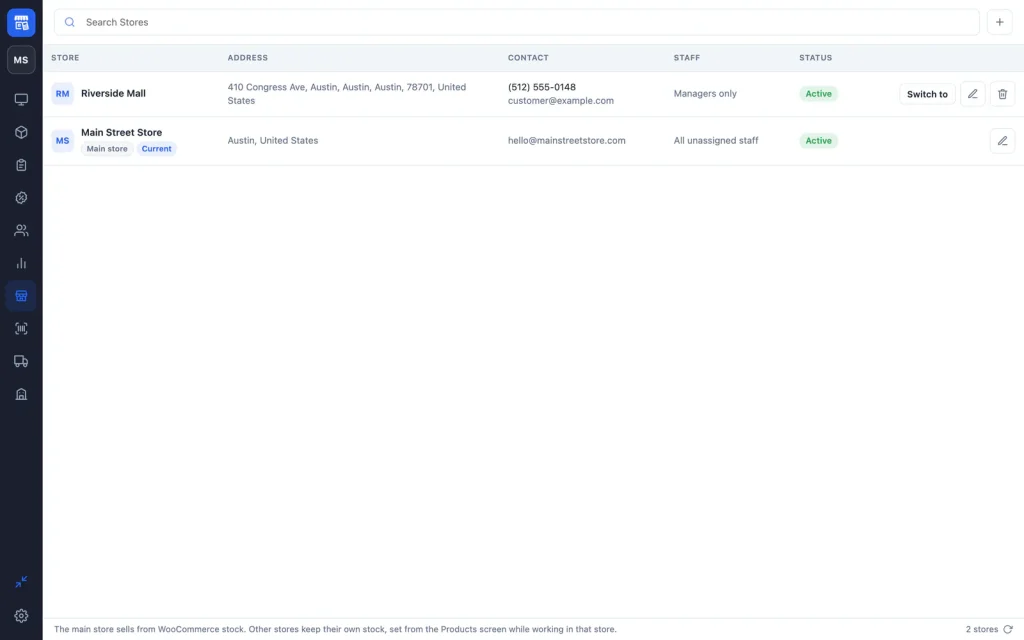
The main store
When you activate Pro, your existing setup becomes the Main store, named after your site and using your WooCommerce store address. It cannot be deleted or made inactive. Orders and customers from before Pro, and online orders, belong to the main store.
Add a store
- Open Stores in the POS sidebar, or choPOS → Stores in WordPress.
- Click Add Store (+).
- Enter the Store name, and optionally phone, email, address, city, postcode, country and state.
- Add Opening hours; they are printed on that store’s receipts.
- Tick the staff who work there (see below).
- Click Save Store.
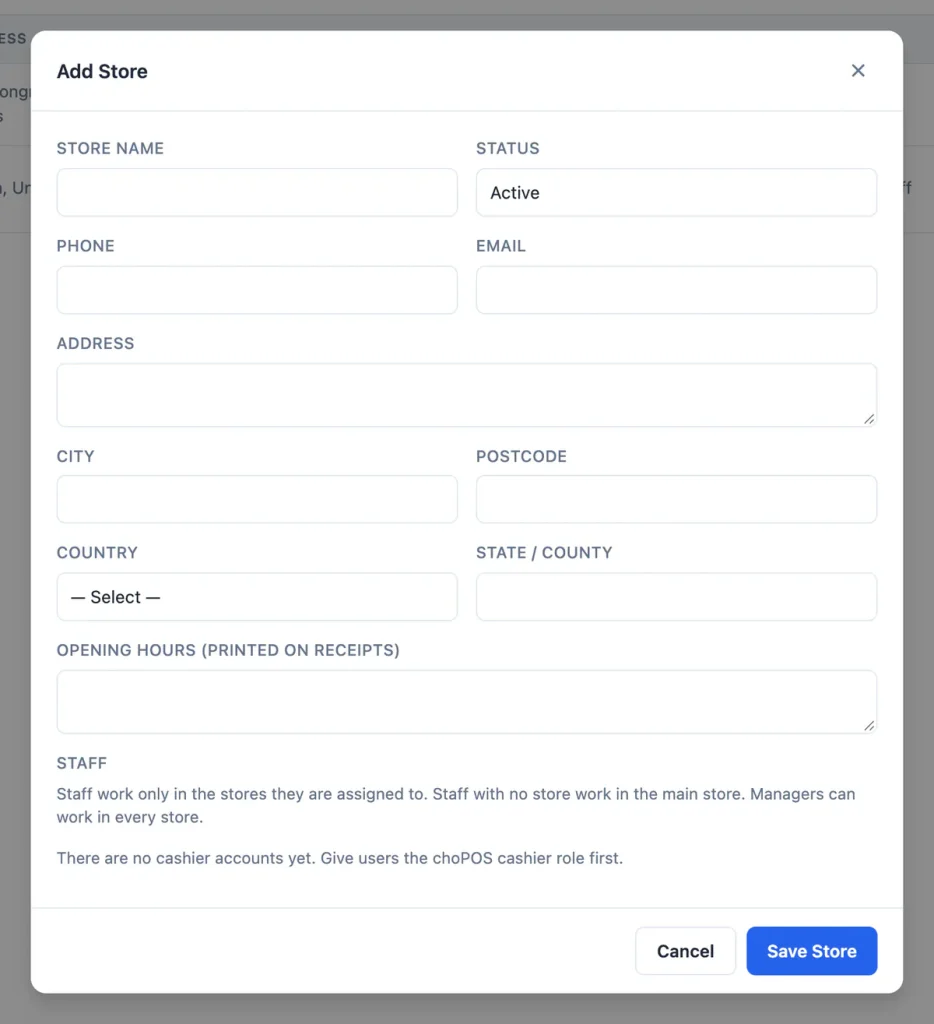
Assign staff to stores
Staff work only in the stores they are assigned to. Staff with no store work in the main store. Managers (users with chopos_manager or manage_woocommerce) can work in every store, so they do not appear in the staff list.
The staff list shows users who have the chopos_cashier capability. If it says there are no cashier accounts yet, create them first as shown in Staff roles and permissions.
Switch store in the terminal
The round button with the store’s initials, under the choPOS logo, shows the current store. Click it and choose another store from Switch store. The terminal reloads in that store, and choPOS remembers it for next time. Managers also see Manage stores.
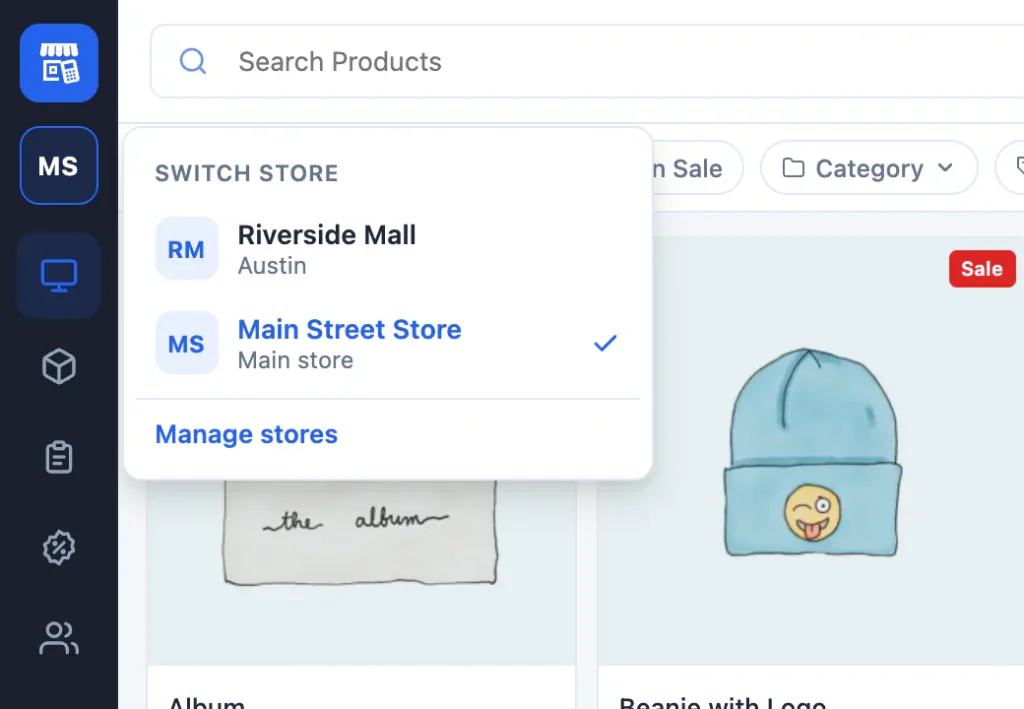
Each store keeps its own open carts, so switching does not mix up sales.
Stock per store
- The main store uses WooCommerce stock, shared with your online shop.
- Every other store keeps its own quantity for each product and variation. A product the store has never stocked starts at 0.
To set a branch’s stock, switch to that store, open Products and type the quantity; it saves to that store only. Receiving a purchase into a store also adds to its stock. Sales in a store reduce that store’s stock; cancellations and refunds put it back, with an order note naming the store.
Per-store stock applies to products with Manage stock turned on. That setting, and prices, are shared by all stores.
Orders, customers and receipts per store
- Every POS sale records the store it was made in.
- The Orders screen shows the orders of the store you are working in.
- Customers created in a store belong to that store’s customer list. The main store also lists your existing and online customers.
- Receipts print the store’s name, address, phone and opening hours.
Reports per store
Reports open for the current store. Use the Store section of the Created via menu to report on another store. Managers can report on every store.
Edit, deactivate or delete a store
Click Edit to change a store, or set its Status to Inactive to stop staff working in it. Delete removes the store from use; its orders and stock records are kept.
Ready to add a location? See choPOS Pro plans.